
Workspace & Work
A workspace is a folder of Markdown files on your machine: goals, work items, notes, guides, and references that you and the AI can read and update across chats. Work helps you plan and track goals and items; Docs is where you find and edit workspace content.
What's in a Workspace
| Folder | What It Holds |
|---|---|
items/ | Work items tracked in Board, List, and Timeline |
goals/ | Goals and sub-goals with progress |
notes/ | Free-form notes |
guides/ | Procedures and how-to documentation |
references/ | Reference material |
templates/ | Templates for new documents |
artifacts/ | Publication records for shared web pages and Atlassian Artifacts |
deck/ | Treasure Deck slide Markdown and accompanying images |
Attachments and other files can live alongside these folders and appear in Docs. Chat outputs and publication records are different; see Artifacts & Sharing.
Start with a Goal and an Item
- Open Work from the sidebar, or press
Cmd+J/Ctrl+J. - Check the workspace selector. All workspaces combines registered workspaces; choose one to focus on it.
- Create a goal describing the outcome, then create an item for the next concrete action. Set the item's Goal, Status, Priority, and useful tags in its properties.
- Open the item to write the brief and acceptance criteria. Use the floating chat to help break it down or draft the work, then review what changed.
- Move the item through planning, execution, and review. Mark it Done when the result is accepted, not merely when an agent has stopped running.
Work defaults to All workspaces, but one workspace remains your active home for chat, Docs, and new content. The new-item dialog lets you choose a destination in All mode. Opening an item from another workspace makes that workspace home; All workspaces is not a promise that the chat receives every visible document automatically.
Board, List, and Timeline
Switch between these views in the Work header. The command palette also offers Work: Show Board View, Work: Show List View, and Work: Show Timeline View.
Board: Move Work by Status
Board is the kanban view. Drag a card between columns to change its status, or open the card and edit Status in its properties.
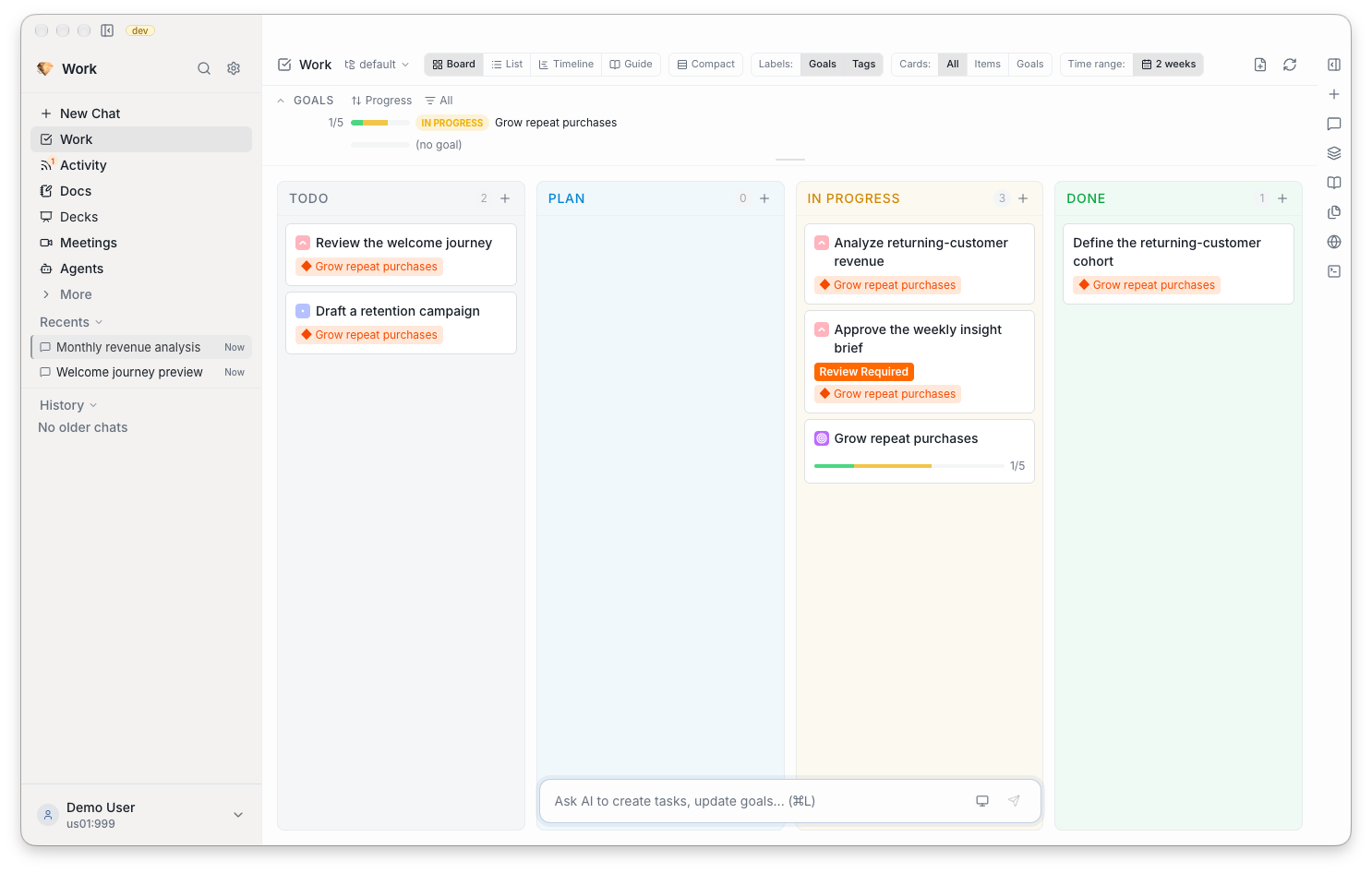
| Column | Included Statuses | Status Assigned When You Drop Here |
|---|---|---|
| Todo | Backlog, Todo | Todo |
| Plan | Planning, Design Review | Planning |
| In Progress | In Progress, Review | In Progress |
| Done | Done | Done |
A column groups related statuses; it is not a one-to-one list of every status. Set Review or Design Review explicitly in the properties when that distinction matters. Void is available in the status picker but is excluded from the active board.
Use Cards: All / Items / Goals to control which kinds appear on Board. Compact reduces card size. Labels: Goals / Tags changes label visibility, not which documents match the filters.
List: Scan Active Work First
List shows the same work as rows, grouped In Progress → Plan → Todo → Done, with priority ordering inside the sections. Use it to scan titles, goal links, tags, and status without the width of a kanban board. Drag a row to another status section to change its status, or open it to edit properties.
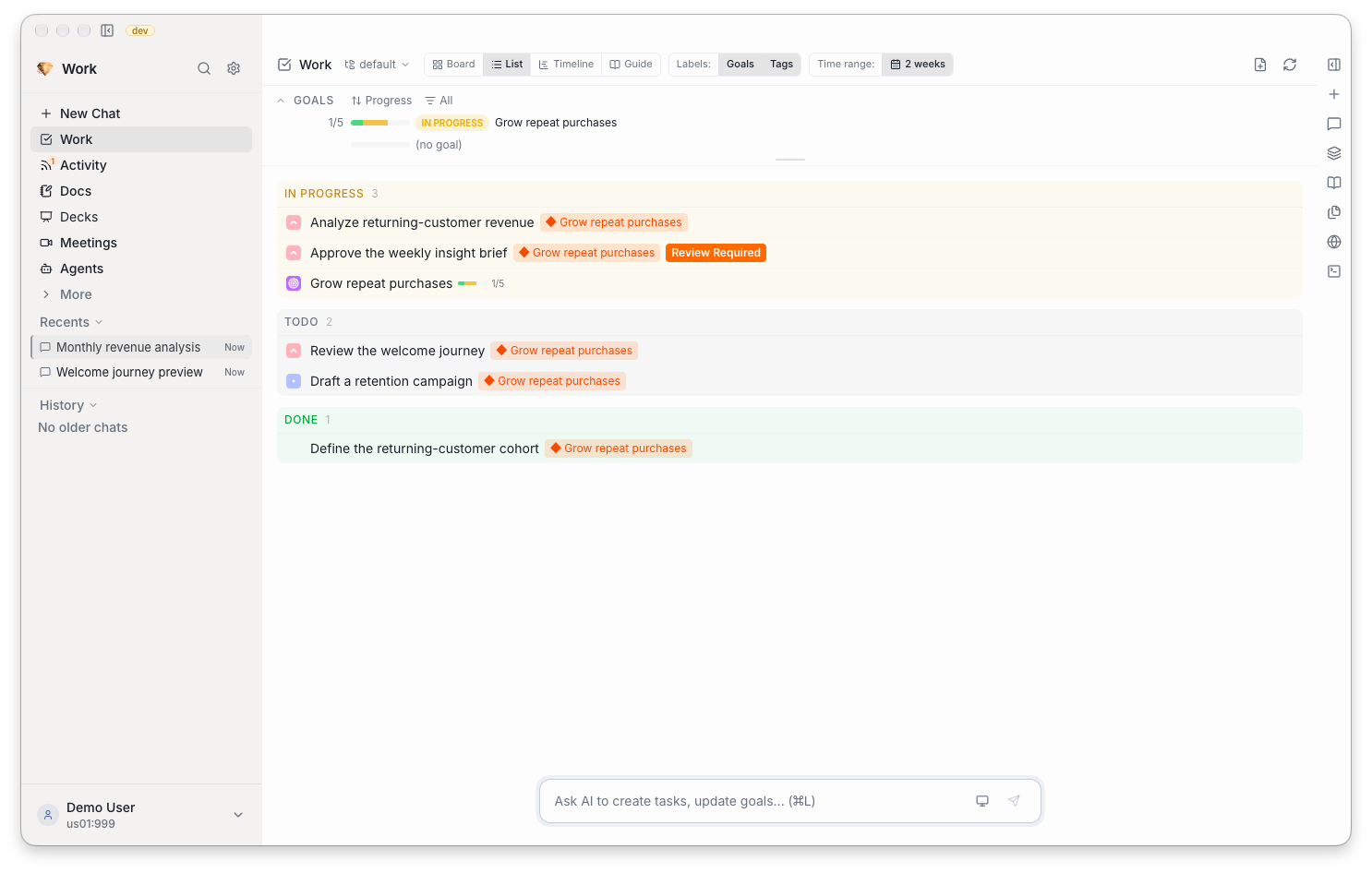
Board and List share workspace, goal, tag, and time-range filters. Hiding labels is not the same as removing a filter.
Timeline: Plan Dates and Ranges
Timeline places goals and items against a planning calendar. Set optional Start and End in the document properties, using exact dates or quarters.
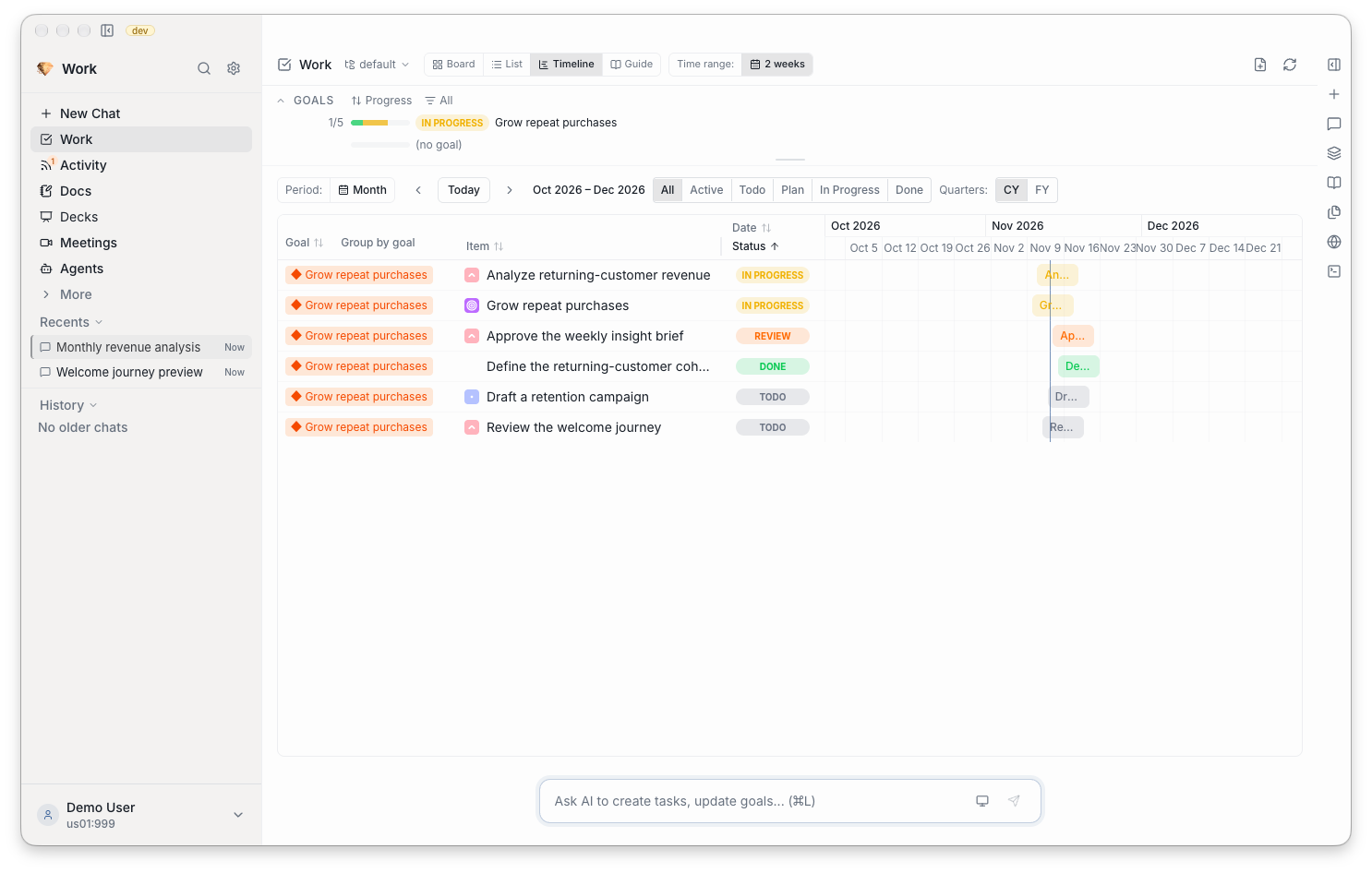
- Choose a Week, Month, Quarter, or Year period; use previous/next or Today to navigate.
- Switch CY/FY to change calendar versus fiscal labels. FY begins in April and is named by its starting year: FY2026 Q4 is January–March 2027.
- Use All / Active / Todo / Plan / In Progress / Done to narrow statuses. Active means Plan plus In Progress, not every unfinished item.
- Sort with the Item, Status, Goal, or Date headers. Group by goal gathers related work under collapsible goal rows.
To adjust a schedule:
- Drag across an empty track to create a Start–End range.
- Drag a bar to move it, or drag an edge to change that boundary.
- Review the preview dates before releasing; press Escape to cancel a drag.
Dragging saves exact dates. If a boundary was a quarter, the affected boundary becomes an exact day. Changing the visible period or CY/FY labels alone does not rewrite the schedule.
A start-only or end-only schedule has an open, faded side rather than an invented second date. With no saved dates, a valid creation date can produce a dim historical bar; that does not mean Start was set. Items without a usable creation date remain Unscheduled. Open the properties to check what is actually saved.
Filters: Find the Work You Expect
| Control | What It Changes |
|---|---|
| Workspace selector | All registered workspaces or one workspace |
| Goal selector | A goal's subtree and linked items, or unlinked items with (no goal) |
| Tags | Documents matching every selected tag; multiple tags combine with AND |
| Time range | Recency by last edit, not planned Start/End; choices run from 1 week through 1 year, plus All |
| Older items control | Reveals work excluded by the recency cutoff |
| Timeline status choices | Timeline's local status subset |
The default time range is 2 weeks. Planning and in-progress statuses remain visible regardless of age. Board and List do not have Timeline's separate status-filter row; their columns or sections group the statuses.
If something is missing, clear the goal and tag filters, check the workspace selection, and widen the time range or reveal older items. A future planned date does not bypass the recency filter.
Goals and Sub-Goals
A goal describes an outcome; items describe the work that advances it. An item links through Goal. A goal can link to a Parent goal, making a hierarchy.
Selecting a goal includes its descendant goals and their linked items. Progress rolls up linked items and goal-body checkboxes across that subtree without counting the same item twice. Same-named goals in different workspaces remain separate.
In the goal selector:
- All / Active / Not done narrows the goal list.
- The sort control cycles through progress, status, priority, and title.
- Only filters Work to that goal and collapses the selector; View opens the goal itself.
- Expand or collapse branches and completed groups to keep the tree manageable.
- (no goal) selects unlinked items, not a list of goals without parents.
Try a focused planning request:
For the selected goal, propose three concrete next items with priorities and clear acceptance criteria. Show the proposal before changing statuses or starting an agent.
The floating Work chat is grounded in the home workspace and selected goal or focused item. Its borrowed-agent choice stays local to that composer; it does not replace the main composer's pinned context.
Hand Work to an Agent
Home's Next actions can hand an item to a goal-linked agent, reusing or creating an agent for that work. A goal row's Hand off to Agent starts a progress discussion before execution. Use the Agents guide to understand the difference between borrowing a setup and invoking an agent.
For review items, Approve records the verdict only. Approve & continue, when offered, explicitly approves and starts the continuation. Opening a document for review does neither. Review the destination and requested action rather than assuming approval always starts work.
Find and Edit Documents in Docs
Open Docs or press Cmd+D / Ctrl+D:
- Search across workspace documents, browse recents, or filter by Items, Goals, Notes, Guides, References, Artifacts, Decks, or Other.
- Edit Markdown directly and use wiki-links to connect related documents.
- Create from a template with title, date, and tags filled in.
- Use the Files, Chat, Artifacts, and Knowledge dock tabs to inspect sources and work alongside a document.
- Open publication records under Artifacts to revisit shared links and, for web pages, manage access or unpublish. See Artifacts & Sharing.
Cmd+K / Ctrl+K opens knowledge search across registered workspaces, independently of Work's workspace filter. Results identify their workspace; opening a foreign result makes that workspace home. Browse → Graph shows connections among chats, agents, and documents.
Sync and Share a Workspace
Workspace sync shares files, not a live chat session:
- GitHub — connect a workspace to a repository and push/pull changes; optional auto-sync runs on an interval.
- Google Drive — sync to a dedicated folder under
My Treasure Work/work/. - Treasure AI — use Workspaces → Add Treasure AI folder to connect an AI Studio work folder. Choose the intended private or shared folder and review access before connecting; synced workspace agents can run remotely. Sync issues need attention before you assume local and remote copies agree.
Teammates receive the files and agent definitions that are synced. A publication record does not grant access to its remote page, and local connector credentials do not travel with the workspace. Review what a workspace contains before sharing it.
Next Steps
- Agents — configure workers, run them, and inspect results
- Artifacts & Sharing — publish outputs separately from workspace sync
- Treasure Deck — create presentations from workspace notes
- Skills — add reusable task expertise