
Agents
Agents are reusable AI workers: define a role once, then invoke it in chat, run it manually, schedule it, or launch it from a Portal card. Each AGENTS.md bundle packages instructions, skills, model, execution backend, and runtime settings.
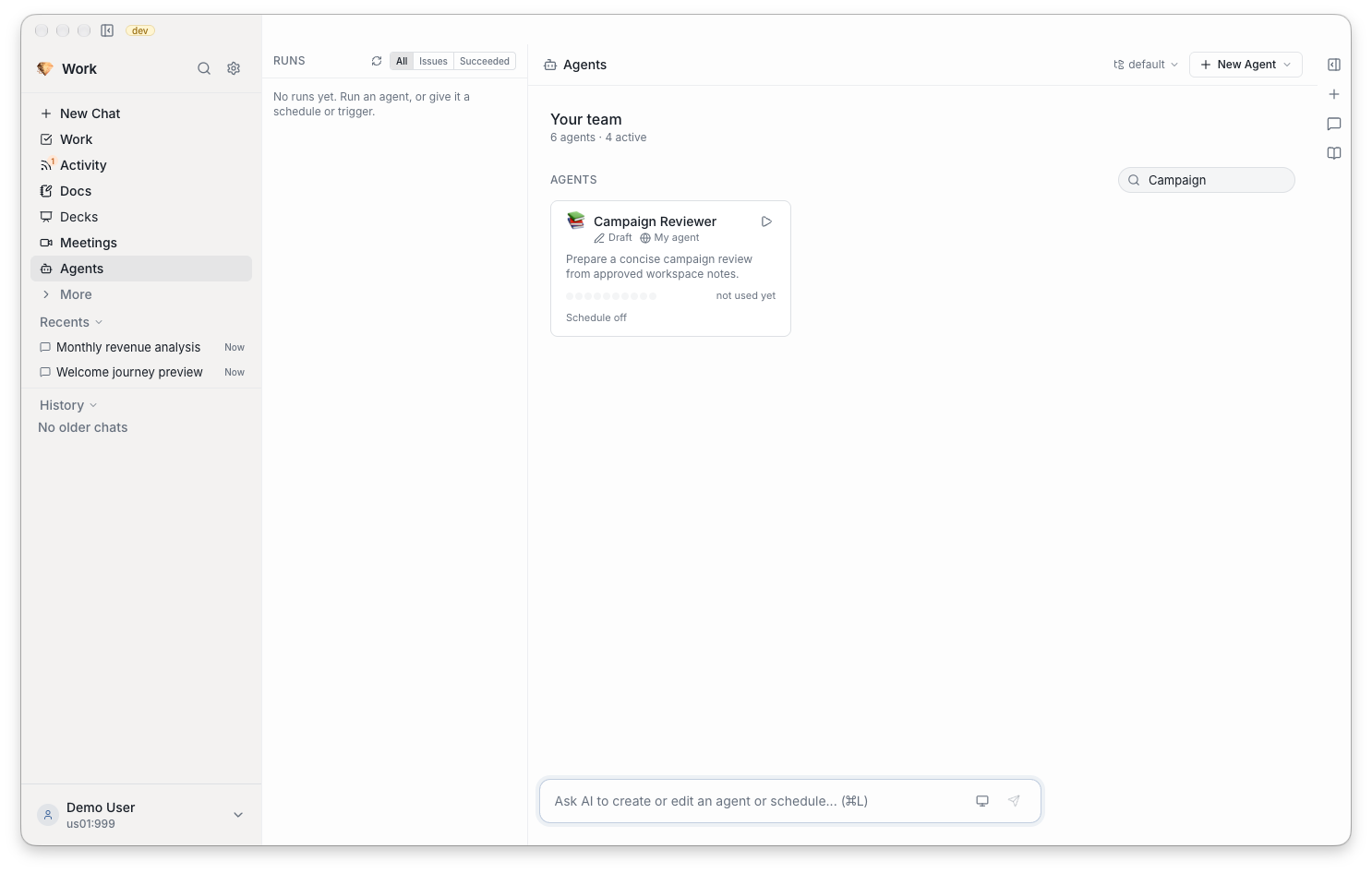
Open Agents from the sidebar (Browse → Customize → Agents) or its view dropdown. Your team shows agents across workspaces, with source filters, search, activity, and Needs attention. Selecting an agent opens Overview and Settings; the agent rail and editor focus on global agents plus the home workspace.
How Agents Work
Each agent is a directory containing an AGENTS.md file. The frontmatter defines the agent's metadata and runtime settings; the body holds the instructions — the role, conventions, and guardrails the AI follows.
| Field | What It Does |
|---|---|
| Name | The agent key — what you type after @ to invoke it |
| Display name & icon | How the agent appears in the sidebar and chat |
| Status | Draft (work in progress), Active (available, scheduled runs fire), Paused (temporarily off), Resting (archived, kept for reference) |
| Backend | Which engine executes the agent — see Coding Agents |
| Model & effort | The model tier used for runs; reasoning effort applies when the agent's context is borrowed into a chat |
| Skills | Skills always loaded into this agent |
| Tool permissions | Controls allowed actions on supported backends; read-only tools are always allowed and an empty selection allows all tools. This is not a universal sandbox. |
| Working folder / extra directories | Where the agent reads and writes files |
| Worktree | When on, an interactive chat bound to this agent starts in a fresh git worktree |
| Schedule | Recurring time with an independent enable toggle; local scheduled firing also requires Active status |
| Triggers | Workspace events that fire the agent — note, reference, or item created, item status changed, meeting transcribed |
Agent definitions are stored in ~/.treasure-work/agents/<name>/AGENTS.md (available across all workspaces) or inside the active workspace, so the same agents travel with your team's repository.
Creating an Agent
- Open Agents → New Agent. When a workspace is available, choose Global agent or Workspace agent.
- Give it a unique name, display name, icon, and description. Keep it Draft while configuring it.
- Review Location, backend, model, effort, profile, skills, Work Folder, and additional directories. Local coding tasks can use a worktree and base branch.
- Write instructions that state the task, trusted inputs, expected output, and when to ask for approval.
- Review tool permissions, schedules, and triggers before making it Active. Named definitions auto-save as you edit; check for save errors before running.
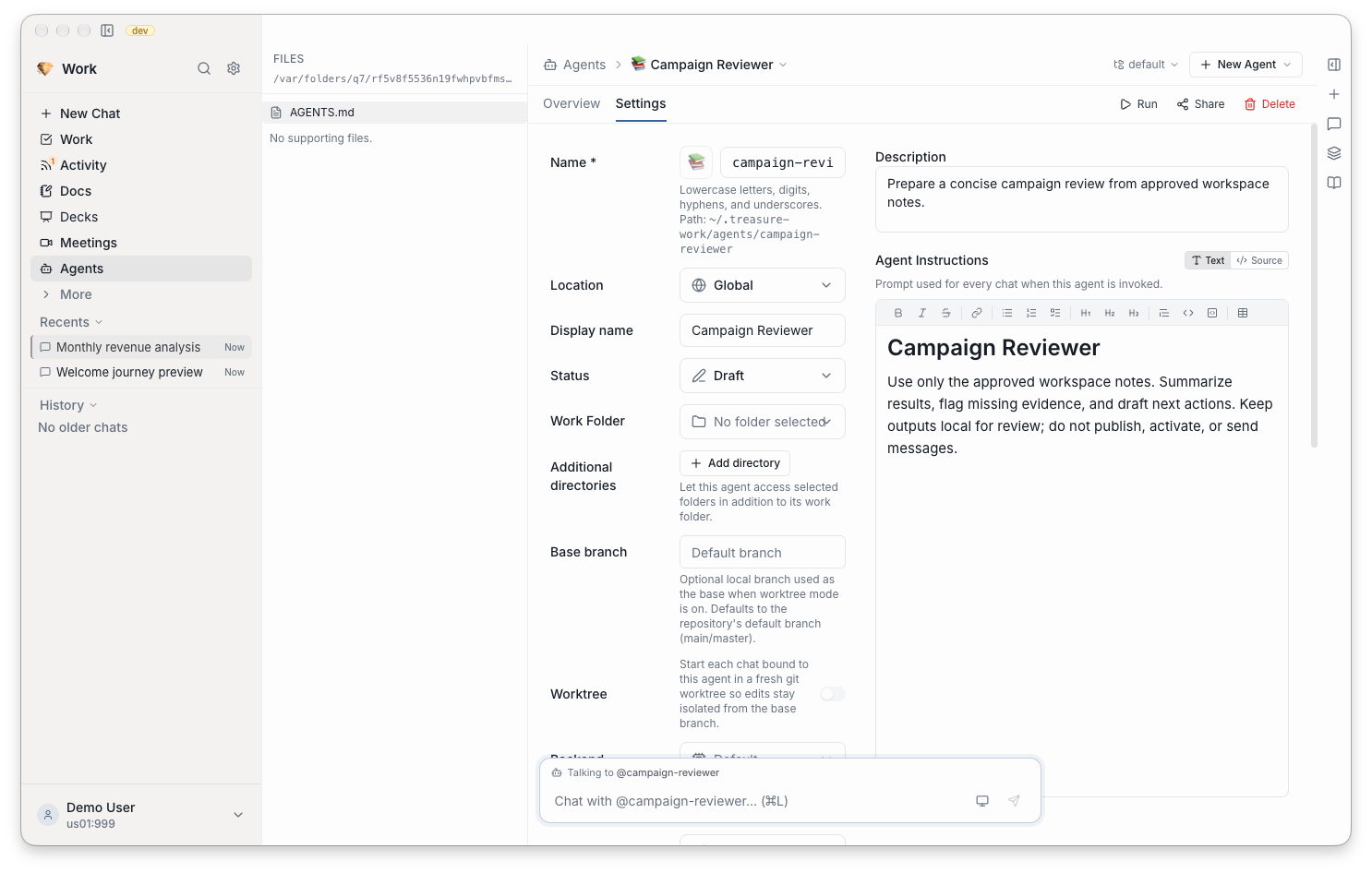
Global agents are available across workspaces; Workspace agents live with their workspace. The editor's Workspace field lists Global and every workspace; changing it moves an existing bundle and makes its new workspace home, so choose deliberately. Opening another workspace's agent makes that workspace home.
Tool permissions and additional directories are not applied to Codex or Pi agent runs. Pi also has no per-tool approval layer. Choose the backend with those limits in mind rather than relying on a field as a security boundary.
Reuse a composer setup
- Click the agent icon (New agent) in the main composer, or choose New agent… in a floating composer's backend/model menu.
- Review the preview of the backend, model, effort, and applicable folder/worktree choices. Cancel, click outside, or press Escape to stay in the composer.
- Choose Continue to editor to open an unnamed Draft with those fields prefilled. Opening the preview or editor does not save a definition.
- Give it a unique name, review its settings, and add any reusable instructions. Workspace defaults to Global; you can choose any workspace. Changes auto-save after naming it.
The snapshot preserves the displayed model choice, including a Settings default; Auto choices remain Auto rather than a temporarily routed model. It does not copy the message, attachments, permission mode, borrowed agent instructions, or other chat-only preferences. The source chat and its unsent message remain intact.
Borrow the saved setup next time from the Context selector or by typing #agent-name in a composer. Borrowing a Draft is allowed; it is distinct from @agent-name, which invokes the agent.
Borrow Context or Hand Off Work?
These are different operations:
| Action | What Happens |
|---|---|
Context selector or Cmd+P / Ctrl+P | Choose an agent's setup for new chats. An explicit pin becomes the account profile's default context. |
#agent-name in the composer | Borrow that agent's instructions and applicable setup for the next chat/message without invoking a separate worker. This is a transient choice, not an automatic persistent pin. |
@agent-name in a message | Invoke or route work to the named agent; explicit invocation takes precedence over borrowed context. |
| Run on an agent | Start an execution and inspect its linked chat and history. |
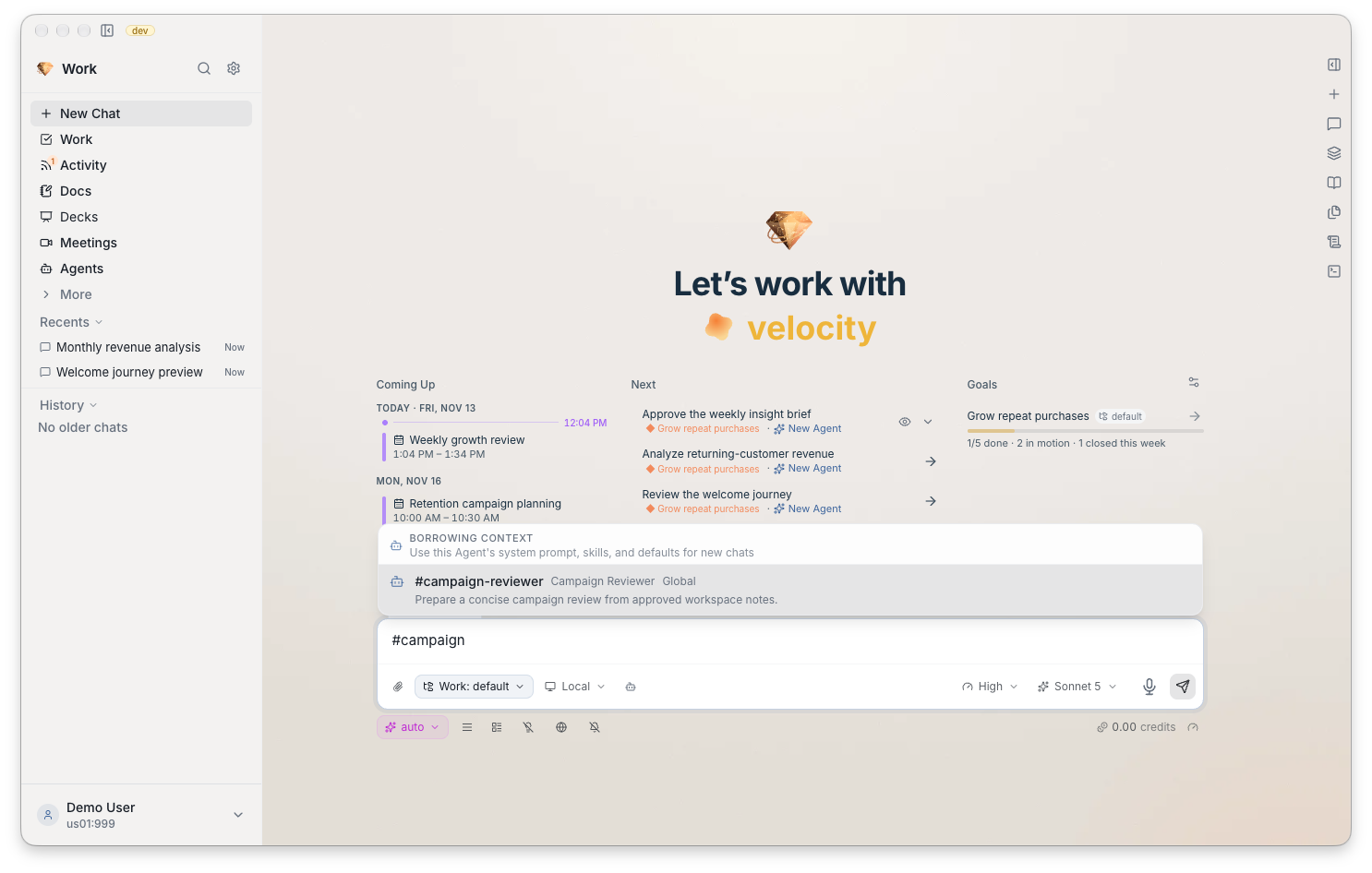
Borrowing can supply instructions, skills, folder, model, effort, and backend. It does not copy the agent's entire previous conversation into yours. A Draft can be borrowed. If changing the Context pin would replace an active chat's setup, Treasure Work asks before starting a new chat. Clear the chip, choose the stop-routing palette action, or use #reset to clear the borrowed override/pin.
Agents from other workspaces appear with source labels. A chat bound to one of them uses that agent's workspace. A floating composer's borrowed context stays local to that composer, rather than changing the main composer's pin.
Run and Inspect an Agent
Use Run on an agent card or the run button in its editor. Draft agents can be run manually for testing; review the instructions and output before enabling unattended work. A Portal card can also invoke an agent.
Overview summarizes runs and issues. Use Runs or the selected agent's History in the rail to inspect executions, with All / Issues / Succeeded filters. Open a run to read its chat in the right dock rather than treating a success badge as proof the business result is correct.
If an interrupted or environmental failure is recoverable, the UI offers Resume or Run again. Fix with chat helps diagnose failures. Read the failure first; avoid duplicate side effects when rerunning work that may have partially completed. Manual runs can overlap, so starting again is not equivalent to resuming the same run. Local scheduled/event firing skips an agent while it already has a run in flight.
Run Remotely on Treasure AI
For remote agents, connect a Treasure AI workspace through Workspaces → Add Treasure AI folder and keep the agent in that synced workspace. Choose Treasure AI as its backend where available.
- Run on Treasure AI opens an interactive remote chat. You can send follow-ups; completed turns sync workspace outputs back to the desktop.
- Run here runs that agent locally instead.
@delegation to a Treasure AI action agent keeps your local conversation and starts a one-shot remote task. The task card tracks the run; the local assistant retrieves and explains the result. This is different from opening an interactive remote chat.
Remote execution uses the connected remote folder and remote service connections, not automatic access to your local files or connector credentials. Review the remote-execution confirmation and sync issues before relying on its outputs.
Schedules and Triggers
In Settings, configure a recurring time using the weekly/day presets, Every… intervals, or the raw cron editor. For local scheduling, make the agent Active and enable Schedule; either an inactive lifecycle state or an off schedule toggle prevents firing.
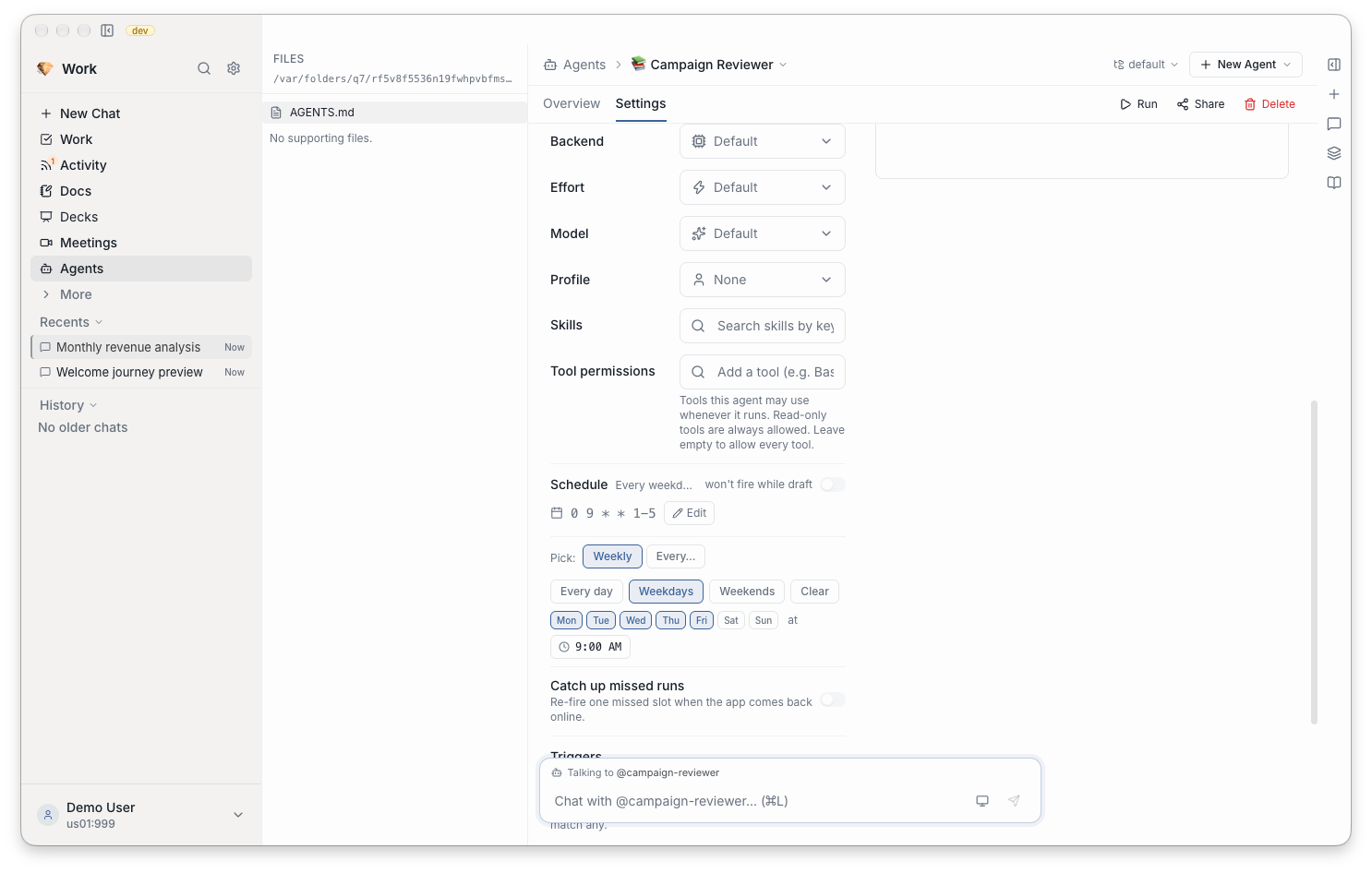
- Catch up missed runs optionally fires one missed slot when the desktop app returns. It does not mean every missed execution will be replayed.
- Triggers can react to a note, reference, or item being created, an item changing status, or a meeting being transcribed. Use tag and From/To conditions where offered to keep the trigger focused.
- Autonomous mode skips per-tool approval prompts on supported backends. Unattended runs that need a person to approve an action may block or fail; review permissions, trusted inputs, and side effects before enabling it. Backend limitations still apply.
- Upcoming scheduled work appears in Coming Up. Inspect the run history after the scheduled time rather than assuming a configured cron succeeded.
Local schedules depend on the desktop app being available. Agents in a connected Treasure AI workspace use platform-owned schedules instead; sync applies those schedules and reports problems, including the platform's minimum hourly cadence. Don't assume a short local interval is valid remotely. Review sync results and remote enabled state after changing a schedule.
Backends
Each agent runs on one backend. See Coding Agents for what each one is and how it runs.
Work Handoff and Fresh Sessions
Home's Next action hands a specific item to a goal-linked agent; Hand off to Agent on a goal starts a progress discussion. In review, Approve saves the verdict while Approve & continue explicitly starts continuation. See Workspace & Work.
For a long local chat, the context meter's Start fresh session previews a compact continuation brief before starting a successor session. Review the brief and compatible model choice. This preserves the working setup for continuation; it is not the same as # borrowing or handing the task to another agent.
Local agents can also maintain curated durable learnings in their own MEMORY.md. That memory is separate from the full chat history and is excluded from exported agent bundles.
Sharing and Importing
Use Share on an agent (or in the editor) to export it as a file. Teammates import it from the Import dialog — from a file or a URL. The agent's instructions, settings, and backend choice travel with it; named backend profiles are device-local, so a recipient who hasn't configured the same profile falls back to the engine's built-in default.
Next Steps
- Workspace & Work — plan goals and items for your agents
- Artifacts & Sharing — review and publish an agent's outputs
- Portal — run an agent from a one-click card
- Skills — the skills an agent can load
- Introduction — explore the full feature set