
Treasure Work
Treasure AI Labs
Treasure Work is a Treasure AI Labs product. Labs products are experimental and change quickly. You must accept the Treasure AI Labs Terms of Use in the app before you can continue. Labs products are provided as-is and are not intended for sensitive, proprietary, or personal data.
Treasure Work is a desktop AI application for Treasure AI. Give it a task — analyze revenue trends, build an audience segment, debug a workflow — and step away. Come back to charts rendered, segments defined, queries optimized, and resources ready to deploy for 24/7 marketing optimization.
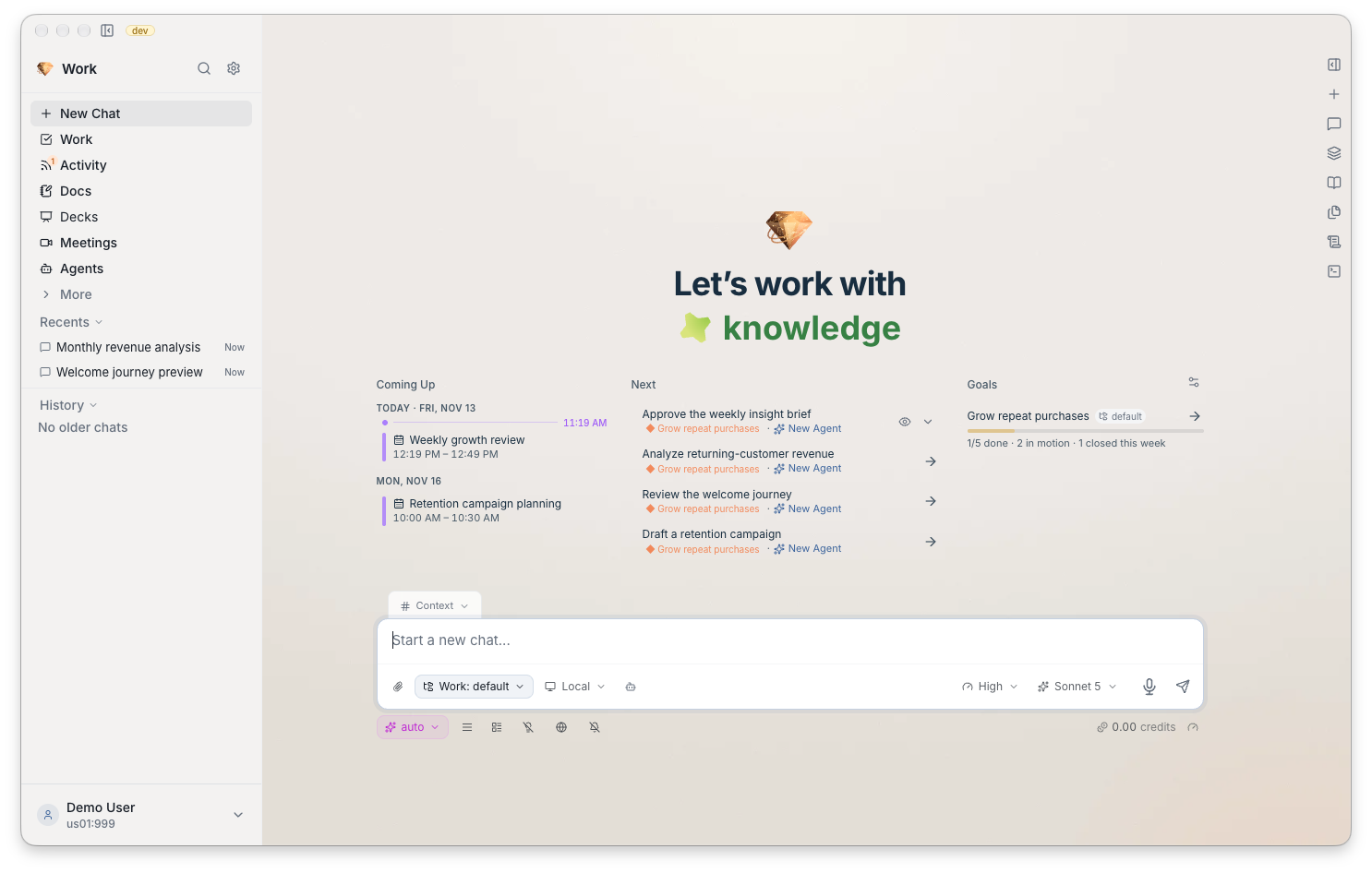
Ready to try it? Install Treasure Work to get started.
What You Can Do
Query your data without writing SQL. Describe what you want in plain English. Treasure Work writes the query, runs it against your account, and renders results as interactive charts and tables.
Build CDP resources through conversation. "Create a segment of users who purchased in the last 30 days but haven't opened an email in 90." Treasure Work creates the segment definition, validates it, and pushes it to your account. Same for journeys, activations, and workflows.
Power through tedious tasks. Audit all segments in a folder, compare journey performance across variants, generate a weekly report from scratch — the kind of work that takes hours of clicking through the console.
Create beautiful slides with Treasure Deck. The AI writes compact Markdown, and Treasure Deck renders polished slides with consistent themes, charts, diagrams, and speaker notes. Less output to generate helps keep creation fast and AI costs down. Refine through chat with a live preview, then present or share when you're ready. See Treasure Deck to create your first deck.
Stay in control. Watch every step in real time — queries executing, APIs called, files written. Expand the AI's thinking to see its reasoning. Everything is transparent and reviewable.
Connectors
Treasure Work's AI becomes more useful when it can reach beyond Treasure AI. Connect Google Calendar, Gmail, Slack, Microsoft 365, Atlassian, and more — all available to the AI within the same conversation. Need something custom? Add any MCP server to give the AI access to your team's internal tools and APIs.
See Connectors for setup instructions and the full list of supported services.
Chat
The chat interface is where everything happens. Ask a question, give an instruction, or describe what you want — Treasure Work streams the AI's response in real time so you can see it think and act.
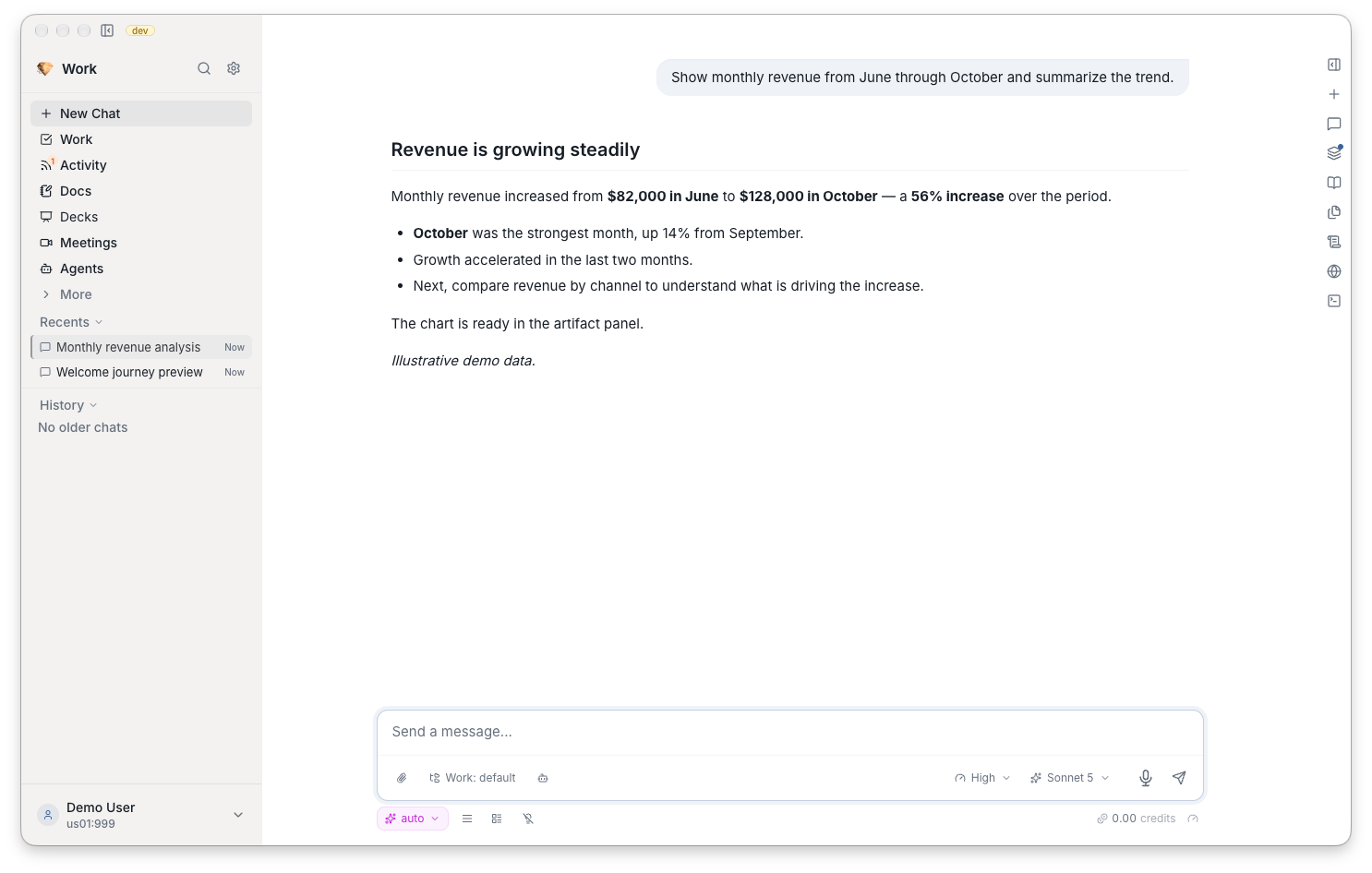
What makes it powerful:
- Extended thinking — Expand the thinking panel to see the AI's reasoning before it responds. Useful for understanding complex analysis or debugging unexpected results.
- Tool calls in real time — Watch the AI execute queries, read files, and call APIs as it works. Every tool call is visible and expandable.
- Voice input — Dictate your messages instead of typing.
- Auto-compact — Long conversations don't hit a wall. When the context window fills up, Treasure Work automatically summarizes earlier messages so the conversation continues seamlessly.
Artifacts
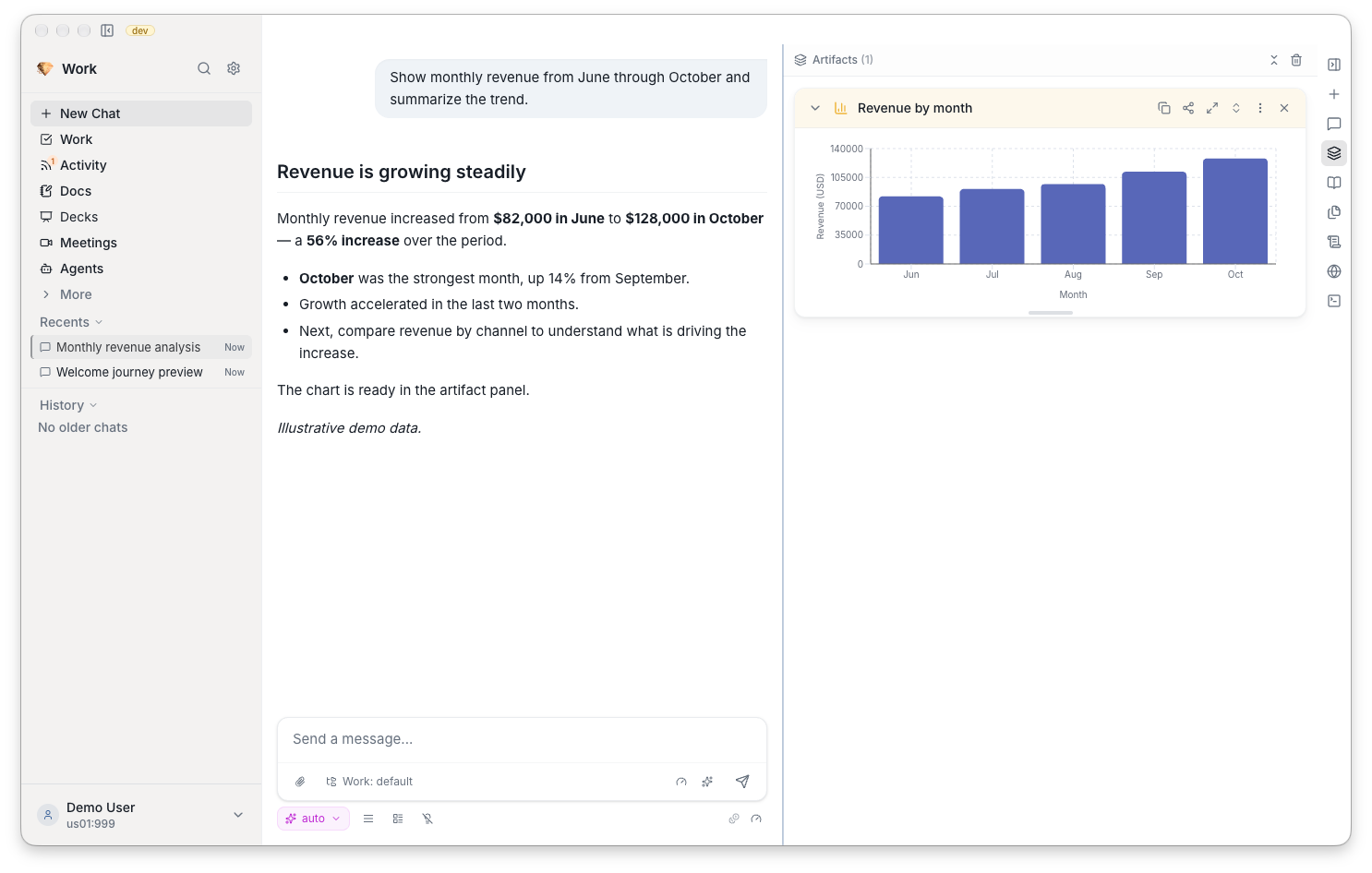
When the AI generates something visual — a chart, a table, a code file, a document — it appears in the artifact panel alongside the chat.
| Type | Example |
|---|---|
| Chart | Revenue trends, segment overlap visualizations, funnel analysis |
| Table | Query results, user lists, segment previews |
| Code | SQL queries, YAML configs, workflow definitions |
| Document | Analysis reports, documentation drafts |
Available actions depend on the output: sort tables, inspect charts, copy code, or save supported content. Opening an artifact does not publish it. Use Share… on an output to choose a destination, or Share chat to export the conversation.
Docs → Artifacts is different: it holds publication records for hosted web pages and Atlassian Artifacts. See Artifacts & Sharing for sharing chats, dashboards, Markdown documents, and slides, choosing an audience, and managing published pages.
Marketing Preview
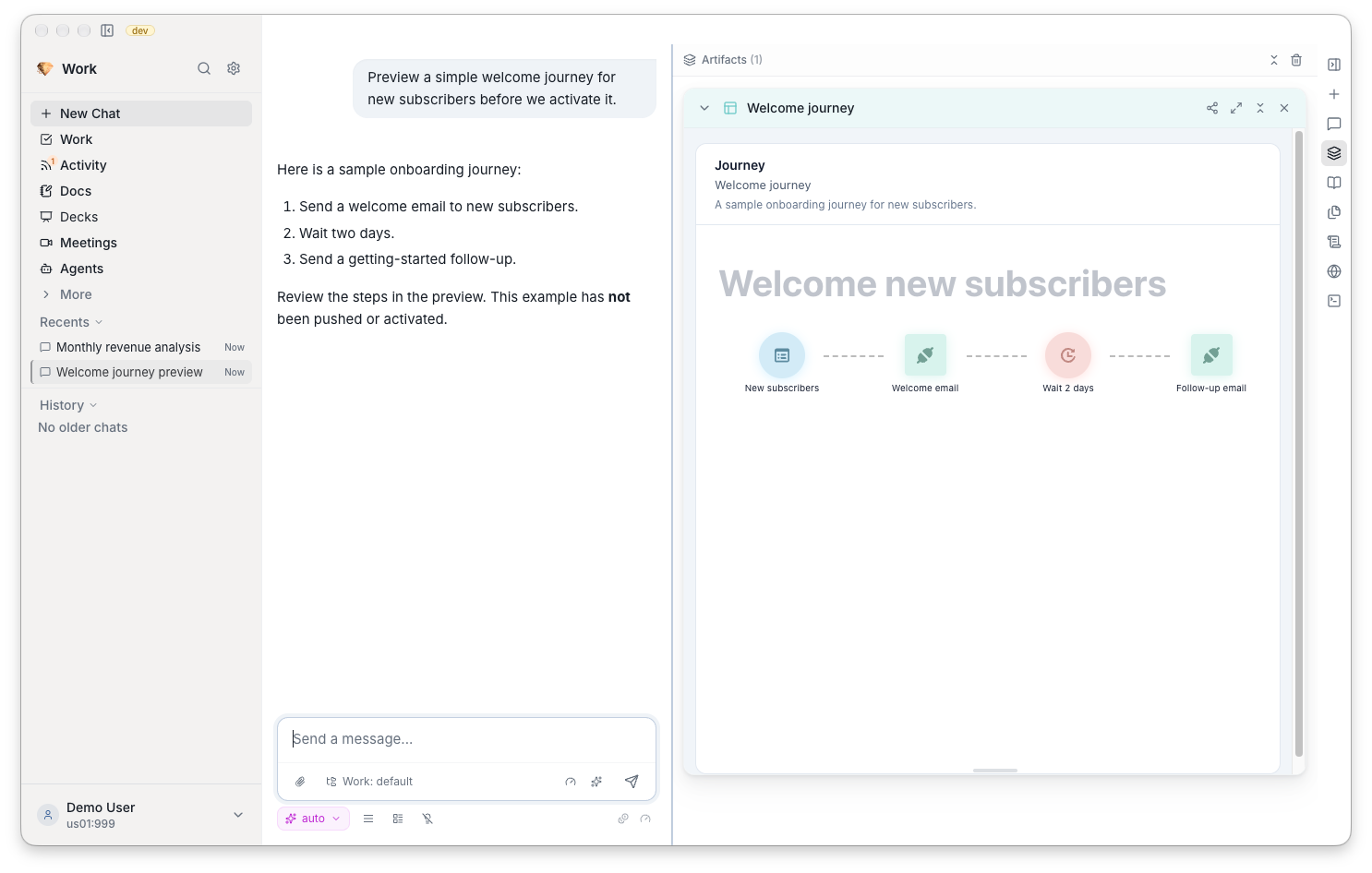
Treasure Work can render visual previews of your CDP resources directly in the artifact panel. When you build or review a journey, segment, or workflow, Treasure Work generates an interactive diagram showing the full structure — entry criteria, decision points, segment rules, activation steps — so you can verify the logic before pushing to your account.
Ask the AI to modify a step and the preview updates in real time.
Borrowing an Agent's Context
Every time you start a new analysis or workflow, you end up re-explaining context: which database, which segment, what coding conventions to follow. Borrowing an agent's context eliminates that — your next chat starts already knowing them.
An agent carries more than instructions. When you borrow one, the new chat comes with its instructions, skills, working folder, model, and execution backend — everything the agent already has configured.
- Context selector — the agent chip on the chat composer pins an agent whose context seeds every new chat for the current account profile
Cmd+P— opens the command palette already filtered to#agent:, ready to pick#agent-name— type a hash mention in the composer to borrow that agent for the next message; in floating chats the borrow stays local to that composer
Borrowing only shapes new chats. If a chat is already open, Treasure Work asks before starting a fresh one with the borrowed context. Unset it any time from the command palette — Stop routing new chats through the borrowed Agent context — or clear the chip.
See Agents to define the agents you borrow from.
Slash Commands
Type / in the chat to invoke a skill directly. An autocomplete dropdown shows available skills — select one and it runs with your message as input.
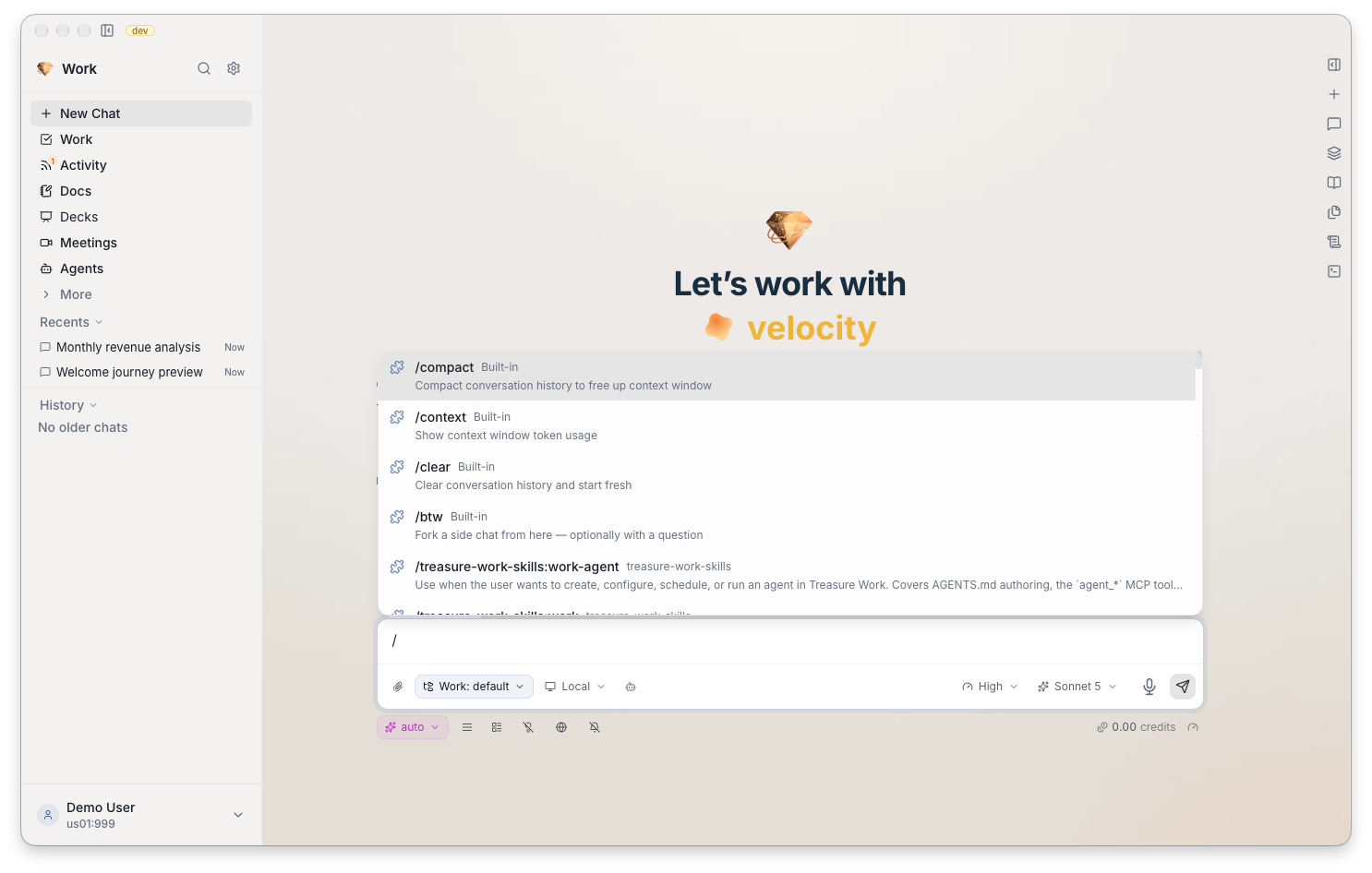
For example, /sql-skills:trino-optimizer followed by a query will analyze it for performance issues and suggest improvements. See Skills for the full list of available skills.
Bang Commands
Type ! to run any tdx CLI command or MCP tool directly from the chat. The output appears inline.
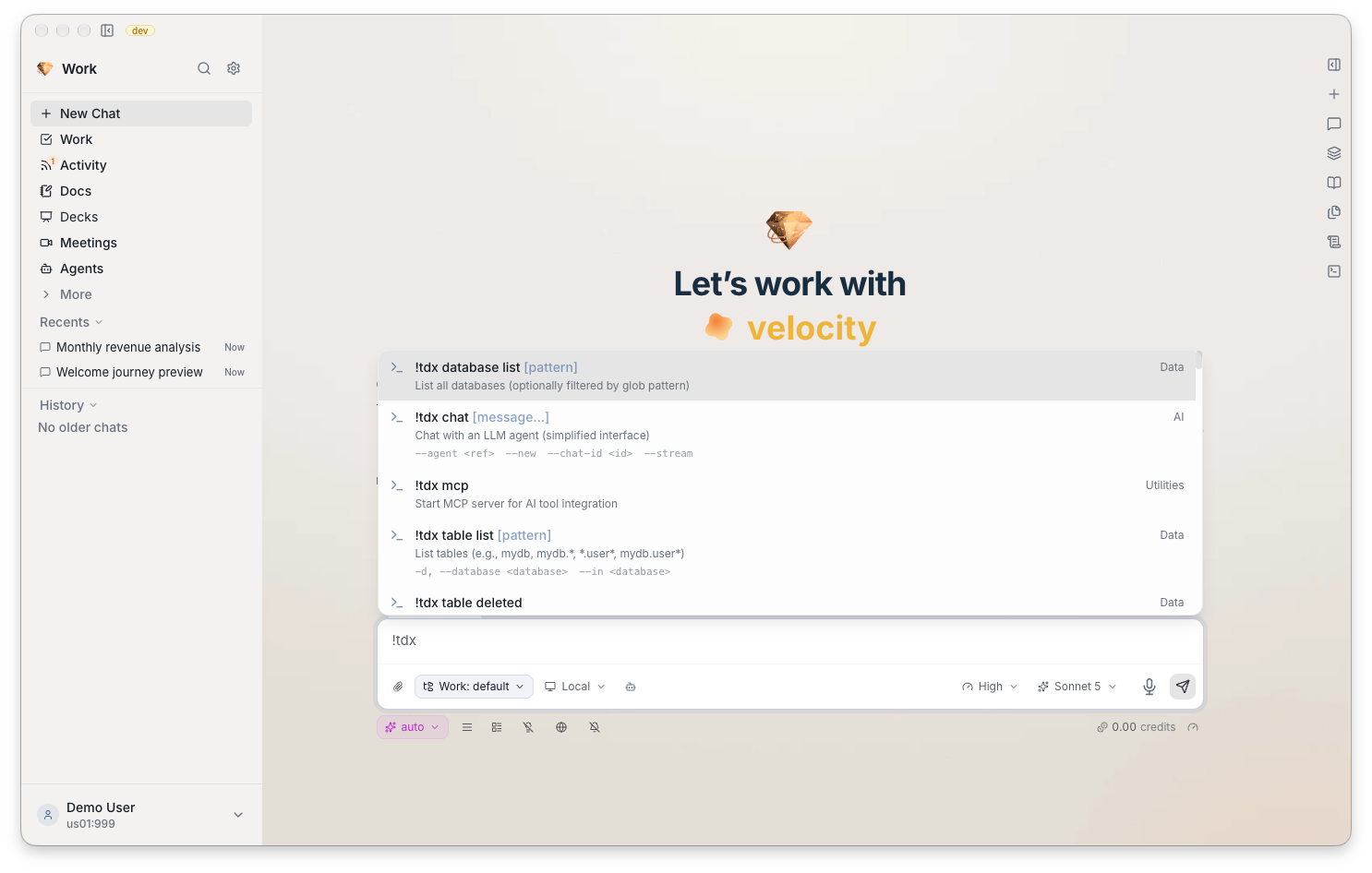
!tdx databases
!tdx query "SELECT count(*) FROM mydb.users"
!tdx segment list
This is useful when you want quick, direct access to CLI functionality without going through the AI.
Agents
Agents are reusable AI workers you define once — a packaged role with its own instructions, skills, model, and execution backend. Type @agent-name in chat to hand a message to one, schedule one to run on a cron, or trigger it from a Portal card. See Agents for the full guide.
Meetings
Record meetings from the chat input and review transcripts, summaries, and action items on the Meetings page — or bring in recordings from the AI Voice Desktop app or a Plaud device. See Meetings.
Workspace
A workspace is a folder of Markdown that the AI reads and writes — items, goals, notes, guides, and references. Use Work → Board, List, or Timeline to track statuses, filter a goal's subtree, and plan dates; use Docs to browse and edit source documents. Sync through GitHub, Drive, or a connected Treasure AI folder. See Workspace & Work.
Portal
Portal is a one-click launch panel for tasks you run over and over — press a card and it sends a message, runs a skill, hands off to an agent, or opens a web app, no chat required. Share a Portal with your team to lock a procedure into a single card everyone runs the same way, with updates that keep syncing.
See Portal for the full guide.
Keyboard Shortcuts
Learning a few shortcuts makes Treasure Work feel effortless. Start with these two:
Cmd+Shift+P— Open the command palette. This is your entry point to everything — borrow an agent's context, start a new chat, change settings, or run any action. If you remember one shortcut, make it this one.Cmd+P— Borrow an agent's context instantly. If you work across a few roles (e.g. "Analytics", "CDP Ops"), this lets you jump between them without breaking your flow.
From there, the rest speeds up your daily workflow:
| Shortcut | Action |
|---|---|
Cmd+N / Ctrl+N | New chat |
Cmd+P / Ctrl+P | Borrow an agent's context |
Cmd+Shift+P / Ctrl+Shift+P | Command palette |
Cmd+K / Ctrl+K | Search chats, documents, and workspace knowledge |
Cmd+O / Ctrl+O | Search chats |
Cmd+D / Ctrl+D | Open Docs |
Cmd+J / Ctrl+J | Toggle the Work board |
Cmd+Shift+J / Ctrl+Shift+J | Open Activity |
Cmd+F / Ctrl+F | Find in the current reading surface |
Cmd+L / Ctrl+L | Focus the chat input |
Cmd+\ / Ctrl+\ | Toggle sidebar |
Cmd+, / Ctrl+, | Settings |
Cmd++ / Ctrl++ | Zoom in |
Cmd+- / Ctrl+- | Zoom out |
Cmd+0 / Ctrl+0 | Reset zoom |
Cmd+K opens broad Knowledge Search. Cmd+O opens the same search focused on chats. The Starred tab narrows the results to starred chats.
Chat Search
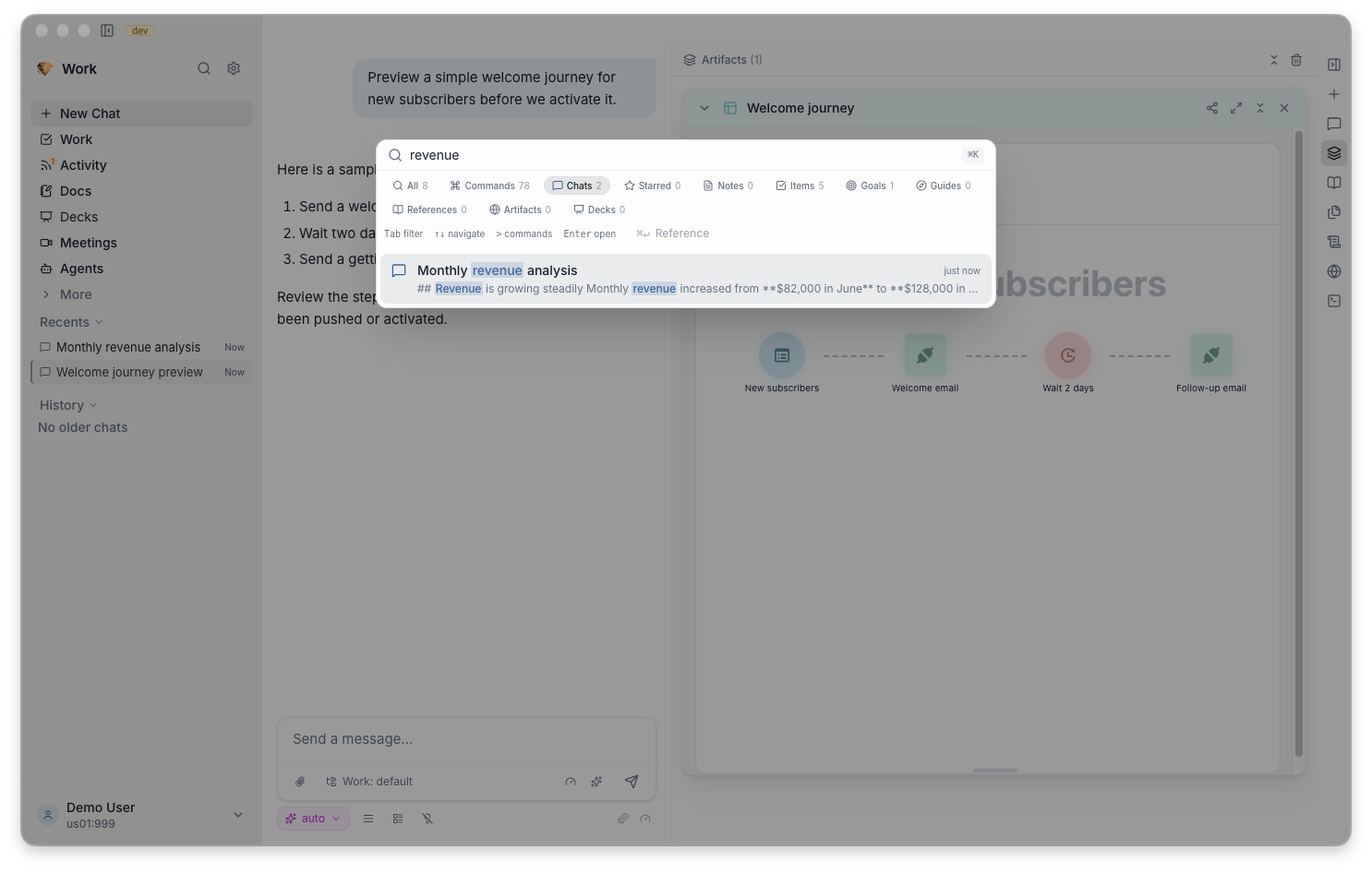
Use Cmd+O to search across all your past conversations.
Settings
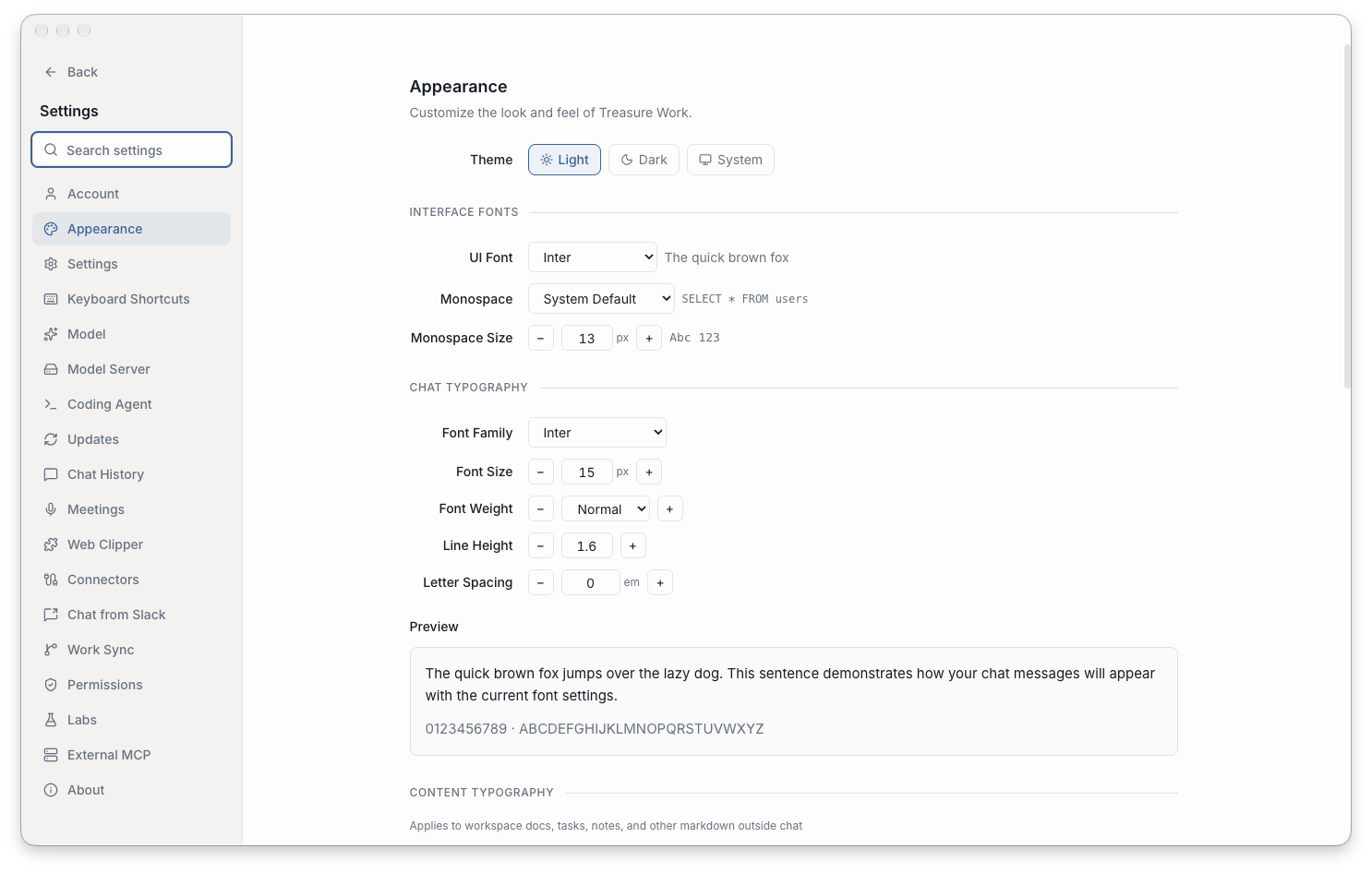
- Theme — Light, dark, or match your system
- Font size — Adjust to your preference
- Working folder — Set the default directory for file operations
- Accounts — Add and switch between multiple TD accounts and regions
Built on tdx
Treasure Work and the tdx CLI share the same SDK and business logic. Every tdx command works inside Treasure Work — type !tdx databases or !tdx segment list and the output appears inline. Skills written for Claude Code work in Treasure Work too.
Get Started
- Install Treasure Work — download, set up your API key, and you're ready
- Set Up Connectors — connect Google, Slack, Atlassian, and custom MCP servers
- Browse Skills — install pre-built skills for SQL, segments, workflows, and more
- Understand Concepts — learn how agents, models, and credits work together
- Explore Agents — define reusable AI workers with their own instructions and schedules
- Set Up a Workspace — give the AI a shared folder of documents, goals, and notes
- Share Artifacts — choose what to share, a destination, and an audience
- Review Meetings — record meeting audio and keep transcripts and summaries