
Connectors
Connectors let the AI work with services alongside Treasure AI: search Slack, read documents, track issues, or use your team's own tools in the same conversation.
Connect a Service
- Open Settings → Connectors.
- Choose Add connector to browse the searchable catalog, then select a service.
- Review what it can do. Enter any requested configuration, then choose Connect and complete browser sign-in when offered.
- Confirm the connector shows Connected. Start a new chat when prompted so its tools are available to that conversation.
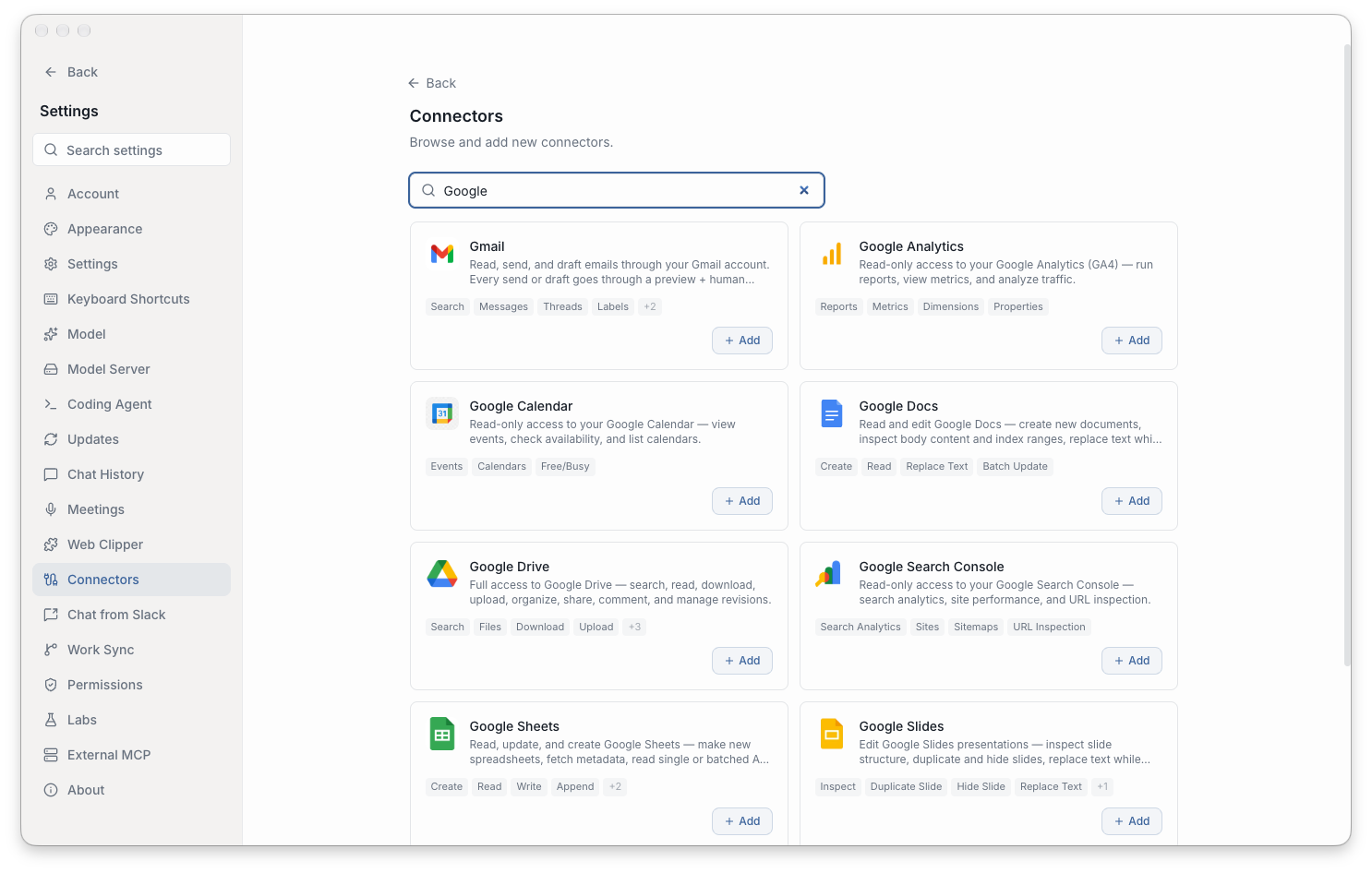
Availability depends on the build, your account, the service's permissions, and administrator policy. Some catalog entries are restricted pilots or appear only for eligible accounts, so your catalog may differ from this page, and seeing an entry does not mean every account can connect to it. A missing or unavailable card is not necessarily a credential you can fix yourself.
Browser Sign-In Connectors
These use the application's configured OAuth integration; you do not register your own client or paste an API key for the normal connection flow.
| Service | What It Provides |
|---|---|
| Google Calendar | Calendars, events, availability, and meeting preparation |
| Gmail | Email search and supported mail actions |
| Google Drive | File discovery and management, workspace sync, chat/file sharing, and web-page publishing through Apps Script |
| Google Docs | Read and edit documents; use Drive for file discovery |
| Google Sheets | Read and update spreadsheets |
| Google Slides | Read and edit presentations, and export Treasure Deck slides; Drive is also needed for pictures and audience controls |
| Google Analytics | Analytics data and reporting |
| Google Search Console | Search-performance data |
| Microsoft 365 | Read-only SharePoint, OneDrive, and Teams messages; not Outlook mail/calendar. Teams channel access requires tenant-admin consent. |
| Slack | Search and read messages, channels, threads, and files; post/edit/delete messages, upload files, and manage reactions where permitted |
| GitHub | Workspace sync, repository workflows, and secret Gist sharing |
| TeamSpirit | Expense records and supported Salesforce/TeamSpirit queries |
| Treasure AI Voice | Recordings, transcripts, and summaries for Meetings, plus recorder uploads |
Google services have separate connector cards and permission requests. Connecting Calendar does not automatically connect Drive, Docs, or Slides. Use the cards needed for your task rather than assuming one Google sign-in enables every Google feature.
Connectors That Need Configuration
These ask for your own service details, API credentials, or application registration. Follow the fields in the current dialog and use credentials approved by your administrator.
| Service | What You Provide |
|---|---|
| Okta | Organization domain, client ID, and client secret. New sign-in is not validated; authorization may fail because of the current scope request. |
| Snowflake | Account, username, and password or private key |
| Looker | Instance URL and the credentials for the selected OAuth or API authentication method |
| Loopio | API URL, client ID, and client secret |
| ZipHQ | API URL and API key |
| Jev | API key, with optional service URL and model |
| SerpAPI | API key |
| SemRush | API key |
| G2 | API key |
| EDINET DB | API key |
| Alpha Vantage | API key |
Don't paste credentials into a chat to configure a connector. Use its settings dialog.
Service-Hosted MCP Connectors
These connect to a service's hosted Model Context Protocol server. Complete the service's browser authorization and supply any endpoint, site, or region the dialog requests. Tools and permissions are controlled by the service.
| Service | Setup and Purpose |
|---|---|
| Atlassian (Jira & Confluence) | Authorize access to Jira issues, Confluence pages, and search. This does not connect Atlassian Artifacts. |
| Teamtailor | Choose the data region and authorize access to recruiting data. |
| Datadog | Choose your Datadog site, then authorize observability tools. |
| Asana | Authorize task and project access; requires an integration-enabled build. |
| Zoom | Private, read-only pilot for meeting/recording lookup; requires an eligible testing account and integration-enabled build. Do not assume general availability or meeting-write support. |
| CircleCI | Authorize pipeline, job, and deployment tools. |
| Treasure AI Studio - Agent Channel | Paste the HTTPS endpoint supplied in AI Studio → Settings → Agent Channels, then authorize. |
| Scalr | Enter your account's MCP endpoint, such as https://example.scalr.io/mcp, then authorize. |
Atlassian Artifacts
Atlassian Artifacts is a separate publishing connector, not an extra permission on the Atlassian Jira/Confluence MCP connector.
- Select Atlassian Artifacts from the catalog.
- Enter your Atlassian site as requested.
- Let Treasure Work install its managed CLI, then complete the browser sign-in.
- Return to the output you want to share and choose Share… → Atlassian Artifacts. For a deck, start from Publish.
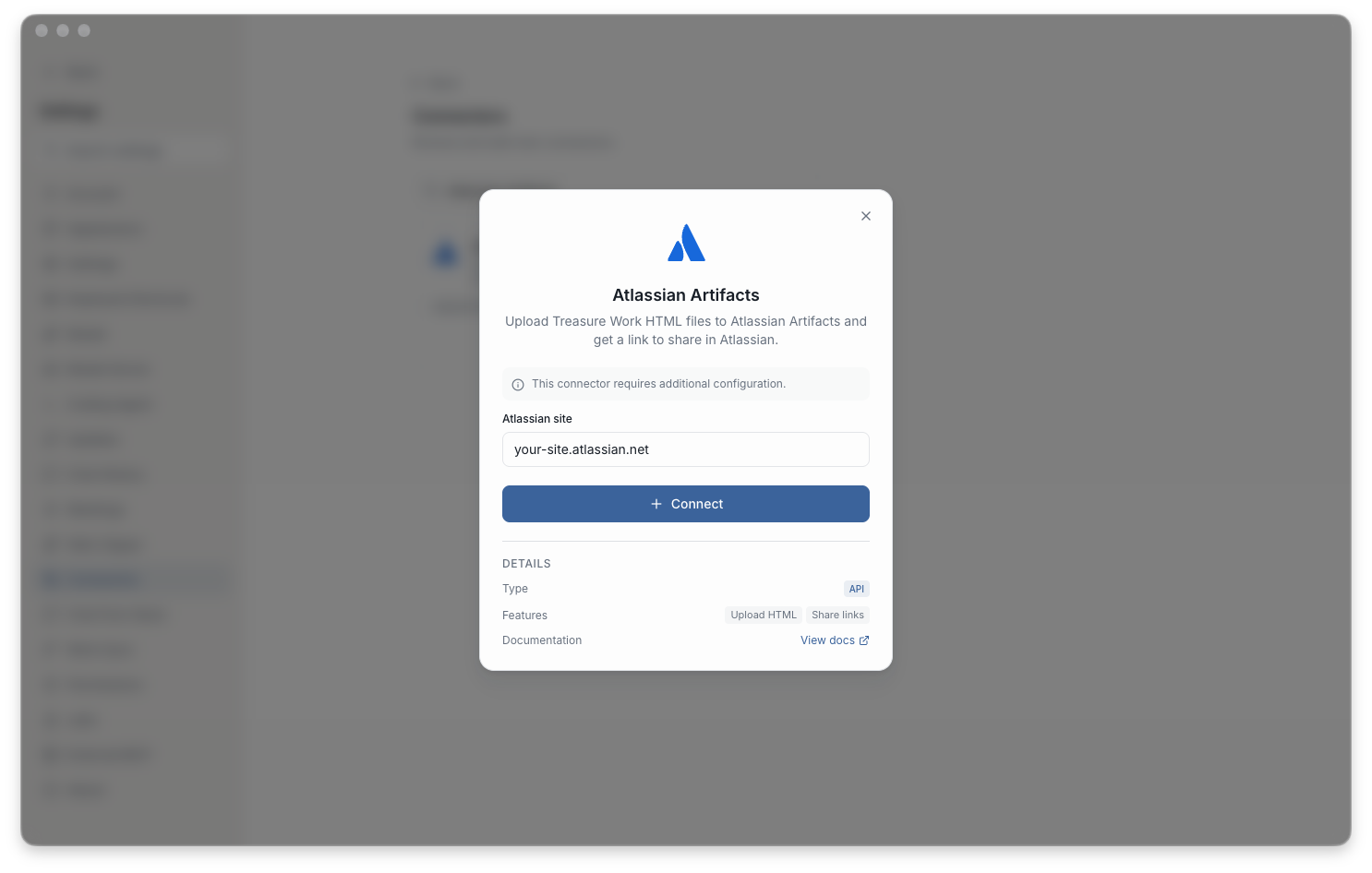
There is no need to install the CLI yourself or copy a Jira/Confluence connector token. The sharing dialog offers private, organization-discoverable, and organization-only link access. See Artifacts & Sharing for audience choices and updates.
Once the connector is set up, you can paste an Atlassian Artifact link (https://<site>.atlassian.net/artifacts/<id>) into a chat and ask the assistant to read, summarize, search, or save it. The assistant downloads the complete original source, including HTML tags and styles, to a temporary file without running it, and saves a copy to your workspace only when you ask. Reading uses the same sign-in and works only for Artifacts that account can open.
Pre-Configured Local MCP Servers
These catalog entries run local tools rather than connecting to a hosted service:
| Server | Purpose |
|---|---|
| Playwright | Browser automation: navigate, inspect pages, take screenshots, and interact with forms |
| Agent Browser | Browser automation and page interaction |
| Stitch by Google | UI-generation tools; requires an API key |
Review the command, credentials, and permissions before enabling local automation.
Custom MCP Servers
For a service outside the catalog, choose Settings → Connectors → Add MCP server. Only add servers you trust: they expose tools the AI may invoke.
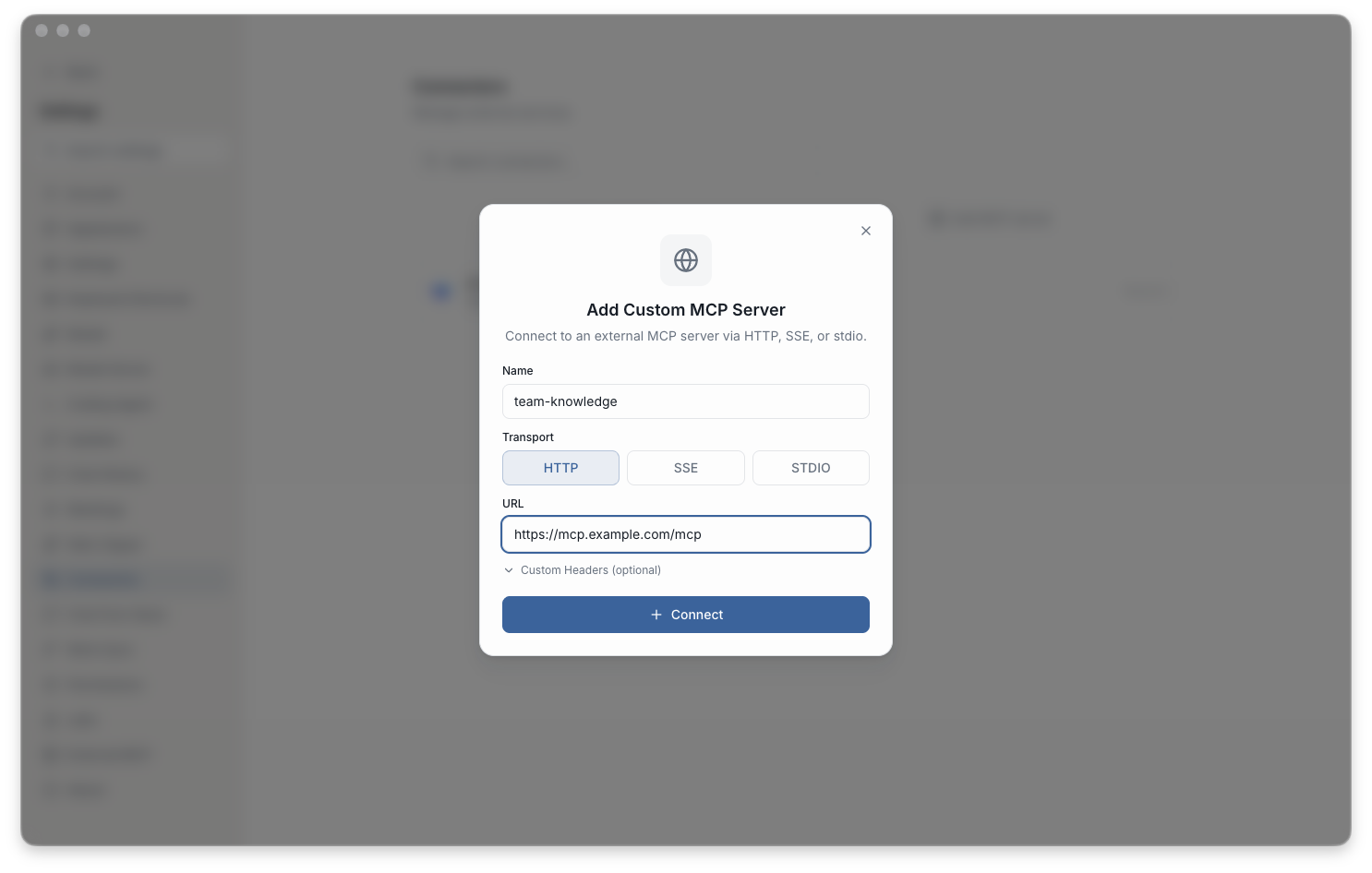
- HTTP or SSE: enter a unique name and the server endpoint URL, configure headers if required, and complete OAuth if the server offers it. Choose Connect.
- Local stdio: select the local transport, enter a name, executable command, arguments, and any required environment variables, then choose Test & Save. The command must be available on your computer.
Start a new chat to use the new tools. Use HTTPS for remote services wherever possible, and verify the endpoint before sending any authorization header or credential.
Built-In Documentation Search
The td-docs MCP server is built in and searches Treasure AI documentation. It is not a connector you need to add from the catalog.
Connection Health and Recovery
- Connected means authentication or the server connection is ready; individual operations still depend on your permissions.
- Disconnected, Needs authentication, or Connection failed means you should inspect the card and reconnect or correct its settings.
- Reconnect retries an existing connection without intentionally signing you out. Disconnect removes its saved authentication or connection; connect again when you want to use it.
- If the service reports insufficient permissions, review the consent request and your service role. Reconnect when updated consent is needed; do not assume retrying grants additional access.
- Start a new chat when connector changes are not reflected in the current conversation's tools.
Credentials and Sharing
Credentials are stored in an encrypted local file protected by Electron's OS-backed storage facilities, rather than as individual entries you must find in Keychain or Credential Manager. The authentication method varies by connector; not all integrations use the same OAuth flow.
Connecting a service does not publish your chat or its artifacts. Publishing and uploading are separate actions with their own audience choices. See Artifacts & Sharing before sending content outside your computer.
Next Steps
- Artifacts & Sharing — share a conversation, dashboard, document, or slides
- Skills — give the AI task-specific expertise
- Meetings — work with recordings and transcripts