
Artifacts & Sharing
Turn a chat result into something you can review, save, or share with the right audience. A chart in your chat is not automatically a published page: sharing is a separate action.
Two Places Called Artifacts
- The chat's Artifacts tab holds outputs created during that conversation: charts, tables, interactive dashboards, images, code, and file previews. Opening a preview does not publish it.
- Docs → Artifacts lists saved publication records, including hosted web pages and Atlassian Artifacts. These records help you find a shared link again; they are not a list of every output from every chat.
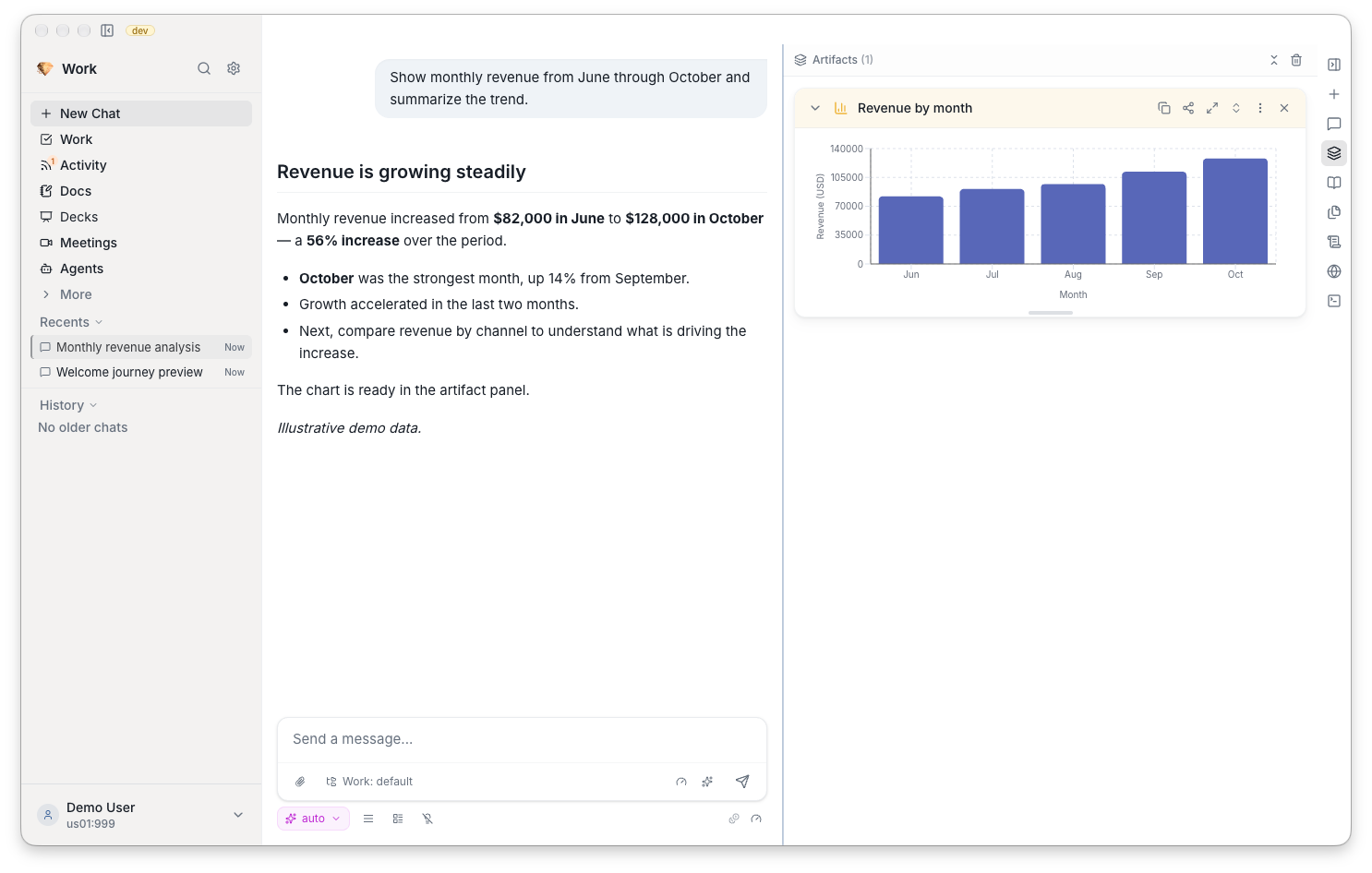
Ask for a chart, a dashboard, or a Markdown report, then review the result in the chat's Artifacts tab. For example:
Make an interactive dashboard from these sample campaign results, with channel filters and a short explanation of the metrics. Keep it local for review; don't publish it yet.
Choose What to Share
| Content | Where to Start | Available Destinations |
|---|---|---|
| Whole conversation | Open the chat and choose Share chat, or use Share in the chat row's menu. | Google Drive, Save as File (JSON), GitHub Gist |
| Chart or interactive dashboard | Open Artifacts in the chat and choose Share… on the output. | Publish as Web Page, Atlassian Artifacts, Google Drive, Save as File (HTML), GitHub Gist |
| Markdown document | Open the document in Docs and choose Share, or use Share… on its file artifact. | Publish as Web Page, Atlassian Artifacts for saved files, Google Drive, Save as File, GitHub Gist |
| HTML document | Open its file preview in Artifacts and choose Share…. | Publish as Web Page, Atlassian Artifacts for saved files, Google Drive, Save as File, GitHub Gist |
| Treasure Deck slides | Choose Publish from the Decks gallery's menu or the deck editor. | Publish as Web Page, Google Slides, Atlassian Artifacts, plus the file-sharing targets |
Available actions depend on the output type and whether it has shareable content. Not every preview supports every target; a PDF preview, for example, is not a web-page publication flow. Copy File Path, when offered, copies a local path rather than uploading the file.
Share a Conversation
- Open the conversation and choose Share chat.
- Choose Google Drive, Save as File, or GitHub Gist.
- For Drive, review the audience before choosing Share. For a file export, choose where to save the JSON file.
- Copy the result's link or file path. Drive and Gist shares also offer an app link for opening the shared content in Treasure Work.
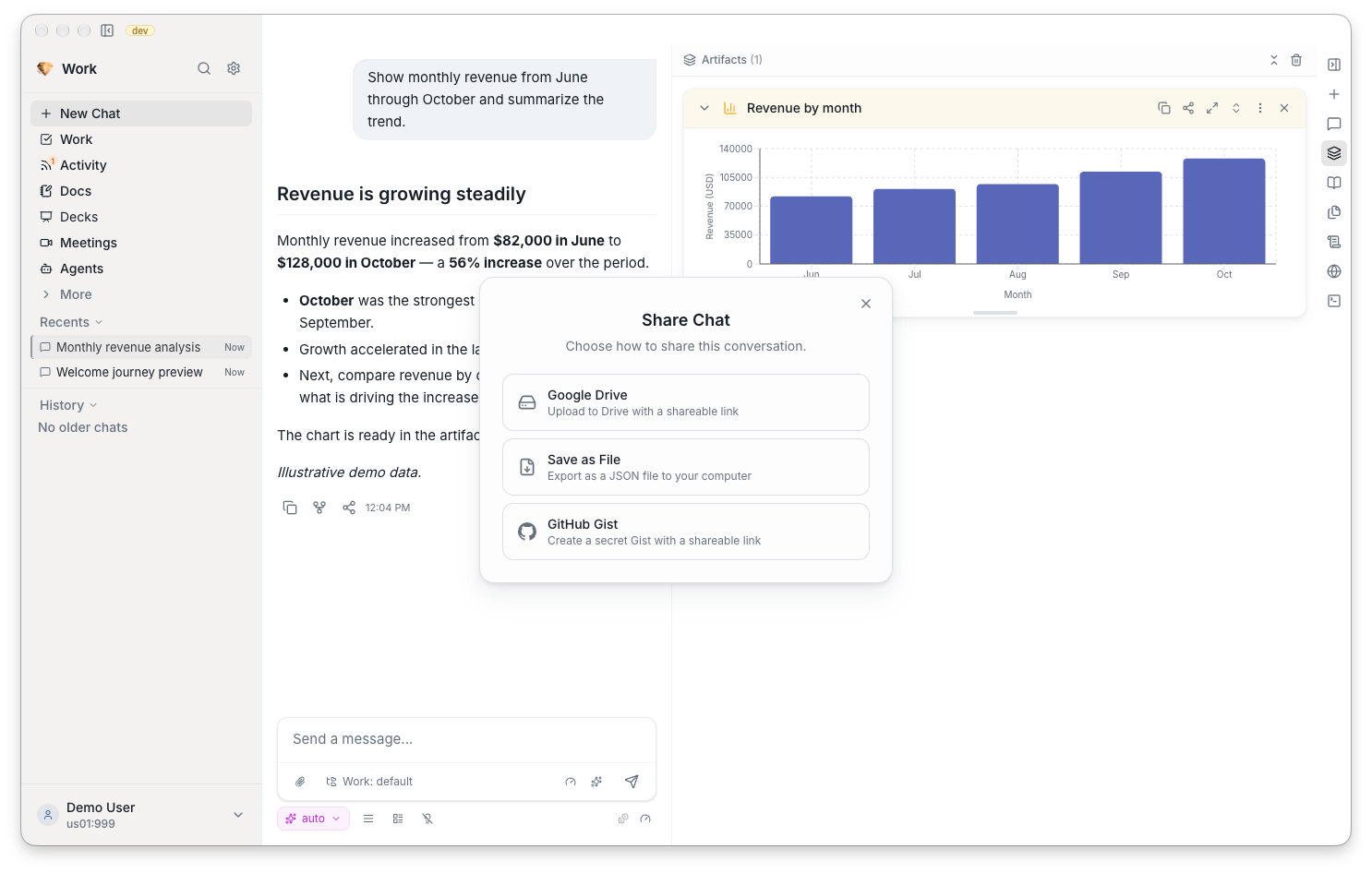
This exports a snapshot of the conversation, not a live collaboration session. Full-chat sharing does not offer Publish as Web Page or Atlassian Artifacts; share an individual output if that is what the recipient needs.
Review the conversation first
A chat may contain prompts, responses, query results, or other sensitive business context. Export sanitization is not a substitute for reviewing what you send. Share a focused document or dashboard rather than a whole conversation when the surrounding context is unnecessary.
Publish a Dashboard or Document
- Review the output and save file edits first. For a Markdown document, open Docs → document → Share; for a dashboard or chart, use its Share… action in the chat's Artifacts tab.
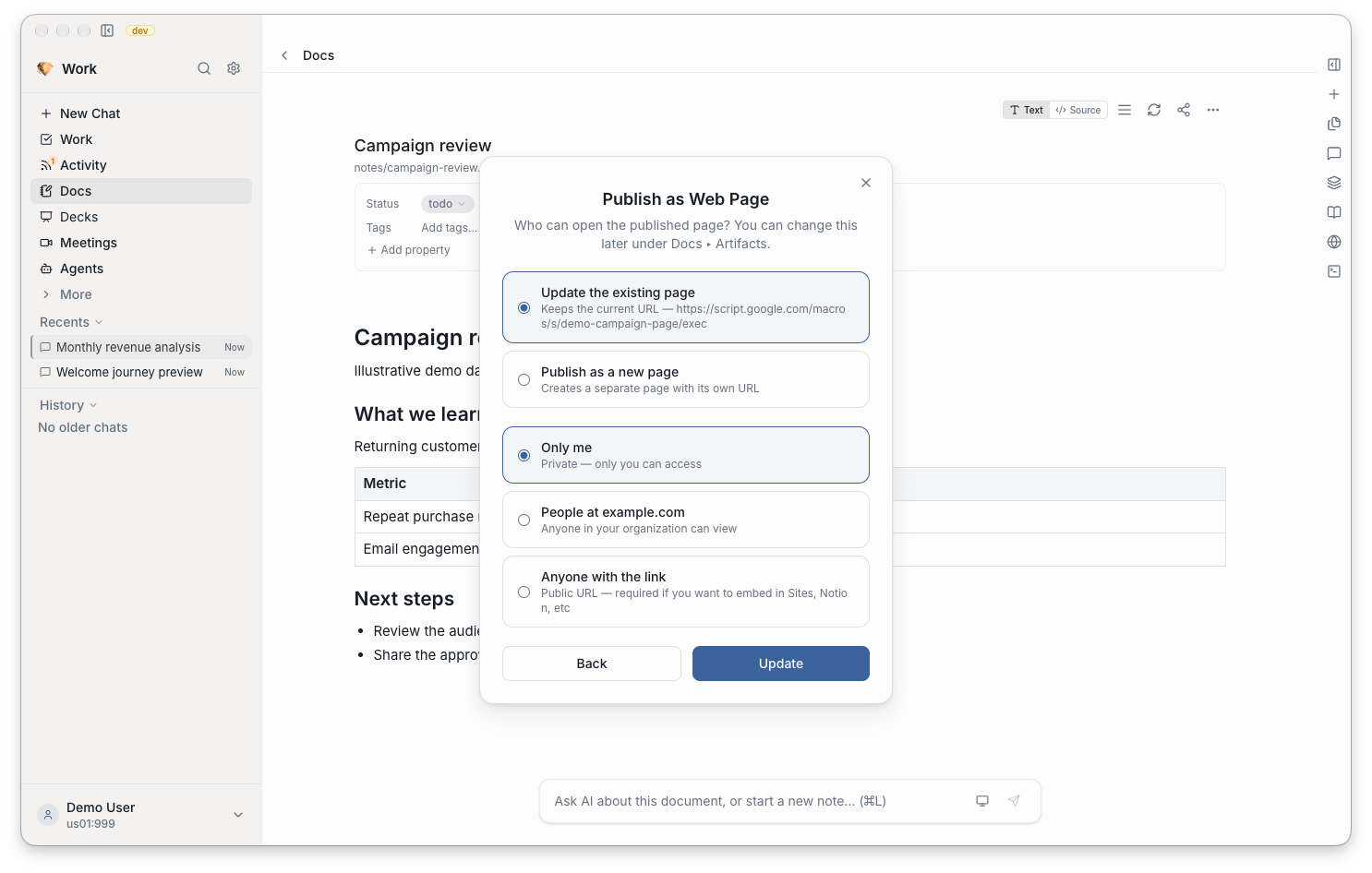
- Choose Publish as Web Page. Connect Google Drive in Settings → Connectors if prompted; web hosting uses Google Apps Script.
- Review the audience, then choose Publish or Update.
- Watch the publishing status pill. Web page ready means the link is ready to copy or open, even if you navigated away while publishing.
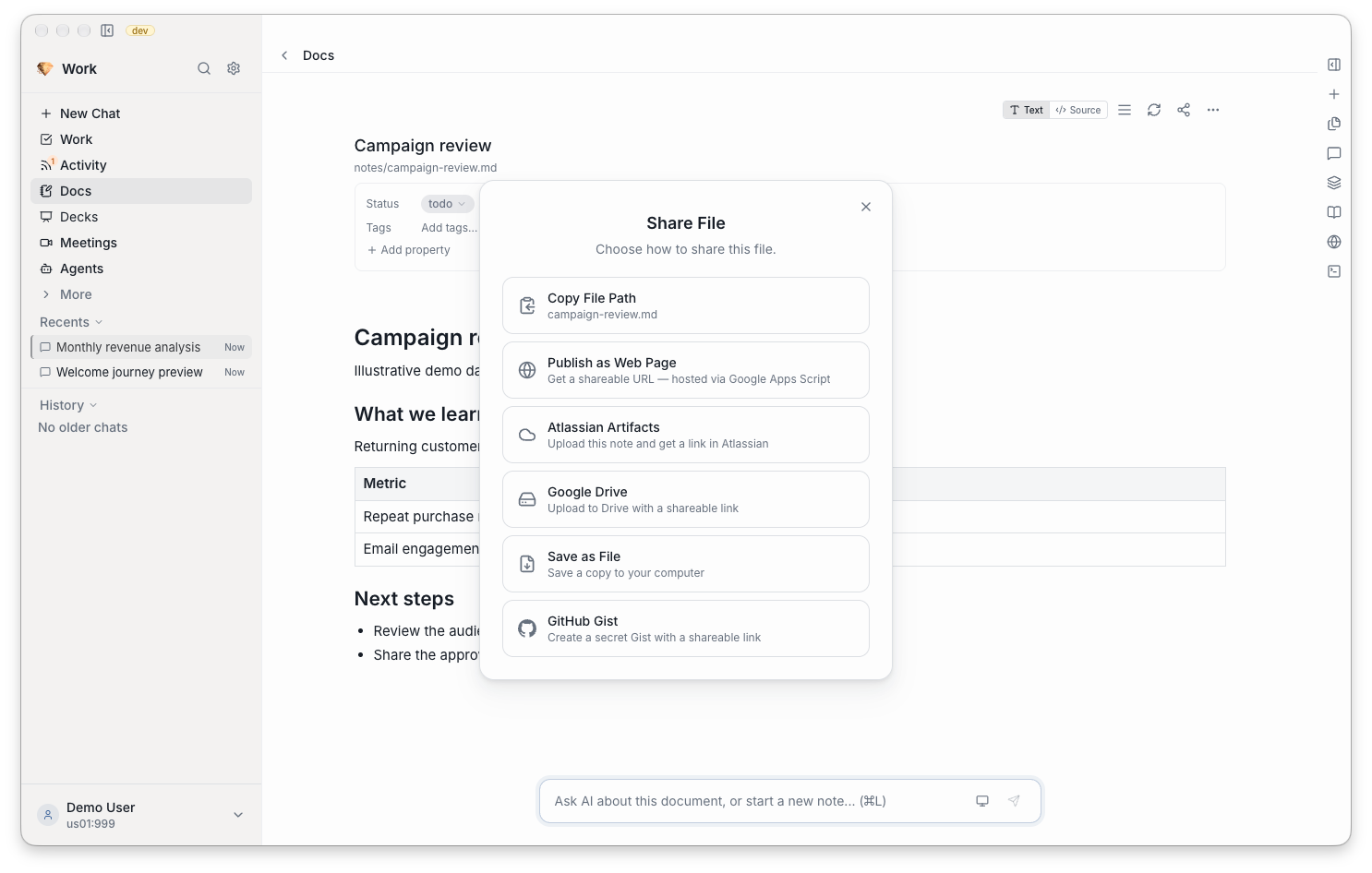
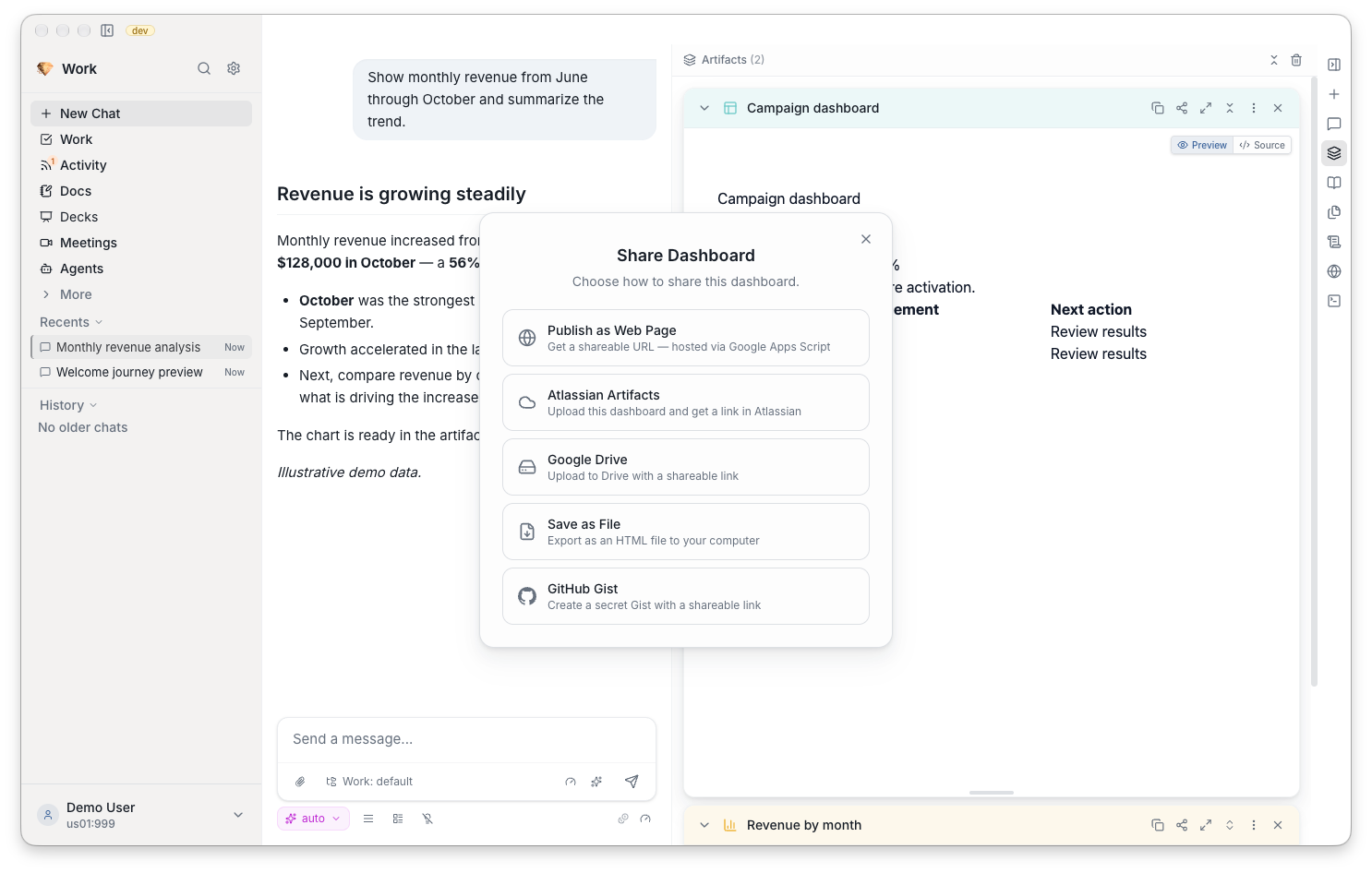
A Markdown document becomes a rendered reader page, rather than a raw Markdown download. A dashboard or chart becomes a browser-viewable page. Publishing captures the current content; local edits do not automatically update it or continuously rerun its analysis.
Google Audience Choices
| Choice | Who Can Open It |
|---|---|
| Only me | The connected Google account only. New non-deck publications start private; a deck's first publish explicitly asks you to choose an audience. |
| People at your domain | People in the connected Google account's organization; shown when an organization domain is available. |
| Anyone with the link | Anyone who receives the link, without Google sign-in for a published web page. This is public access, not an organization-only link. |
Private and organization-only web pages require Google sign-in. Embedding a page in another service may require Anyone with the link; don't broaden access merely to make an embed work if the content is confidential. Drive uploads use similar audience choices, but their access is managed later in Google Drive.
If sharing reports missing Google permissions, reconnect Google Drive from Connectors and retry. Account or administrator policy can still prevent a requested action.
Update or Stop a Published Web Page
Open Docs, select Artifacts, and open the publication record. Use Copy, Preview, or Open to revisit its URL. The record shows the content kind, audience, publisher, and source when available.
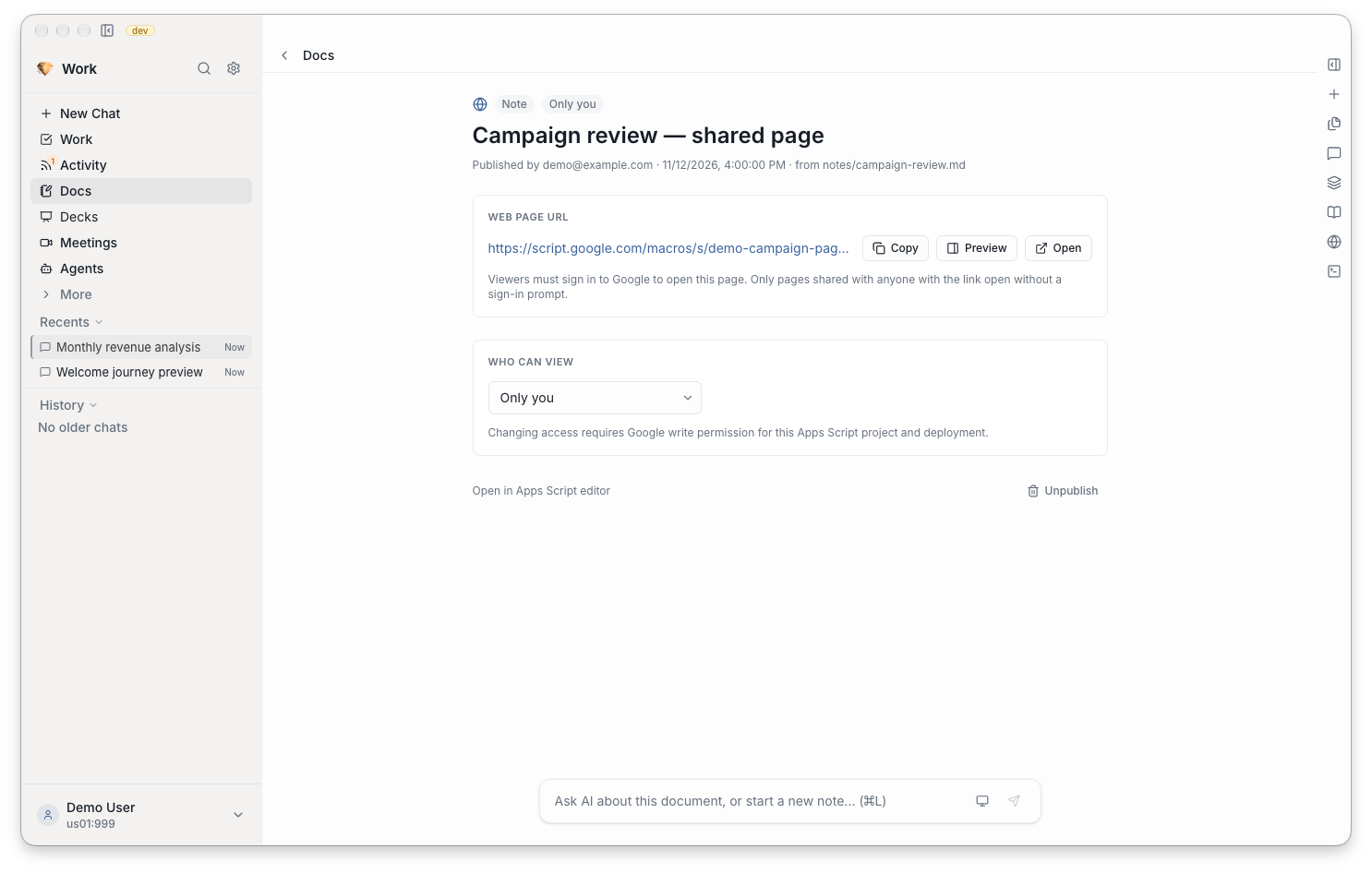
- Change who can view from the record's audience selector. The connected Google account needs write permission for the Apps Script project and deployment; having the record or viewing the page does not grant management access.
- Update content by sharing the source file again and choosing Update the existing page. Its URL stays the same. Non-deck documents can also be published as a new page with a separate URL.
- Unpublish from the record when available, then confirm. The page's URL stops working and its Apps Script project moves to Drive trash. Treasure Work restricts this action to the recorded publisher account when a publisher is recorded.
Records belong to the workspace and can travel with workspace sync. A teammate receiving a record still needs permission to open the remote content. Drive uploads and Gists are managed at their destinations, not through this web-page audience selector.
Upload to Atlassian Artifacts
Connect Atlassian Artifacts separately from the Atlassian Jira/Confluence connector. Then choose Atlassian Artifacts from a supported output's sharing dialog.
For a new upload, choose:
- Only me — private until you share it in Atlassian Artifacts.
- People in your organization — discoverable in Artifacts by people in your organization.
- Anyone with the link (internal only) — people in your organization who have the link; not a public internet link.
If the dialog finds same-name Artifacts, select the one to update or explicitly choose Create another. Updating preserves the selected link and its existing audience. Docs → Artifacts keeps a local link record; open it with Open in Atlassian to view the remote content. It does not expose the Google web-page management controls.
Publish Slides
A Treasure Deck starts as local Markdown and images. Save edits, then choose Publish from the gallery's menu or editor. Choose a hosted web page, Google Slides, or Atlassian Artifacts according to your audience.
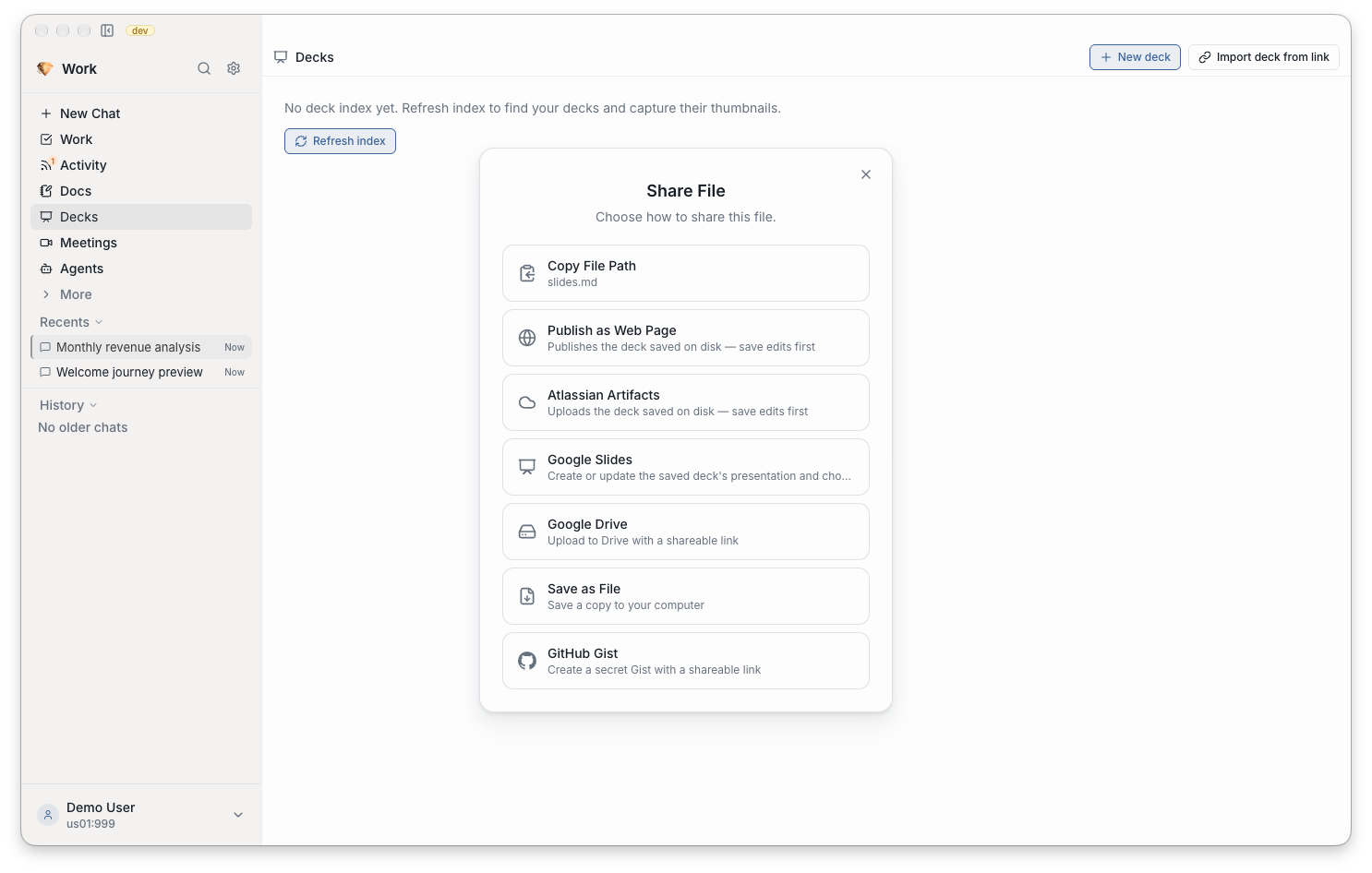
- Web page publishes a snapshot of the saved deck. Publish again to update the existing URL.
- Google Slides exports the saved deck into a presentation. Connect Google Slides; connect Google Drive to include pictures and choose an audience. Without Drive, text can still export without changing sharing.
- Keep current sharing preserves the presentation's audience when offered. Only me removes other named collaborators and requires ownership; inherited folder access cannot be removed here. Domain/link choices preserve named users and groups, and inherited access or policy may block changes.
- Re-exporting to an existing Google Slides presentation replaces its slides. Keep the deck Markdown as your source of truth rather than relying on edits made only in Google Slides.
Hidden is not private
Published web decks include downloadable source, hidden slides, and speaker notes. Remove confidential material from the source and notes before publishing; hiding a slide does not remove it from the shared package.
Files and Secret Gists
Save as File stays on your computer until you send the file elsewhere. GitHub Gist creates a secret, unlisted Gist: anyone with its link can read it, so “secret” is not an access-control boundary. Connect GitHub before using that destination. Delete or manage a Gist in GitHub rather than in Docs → Artifacts.
Next Steps
- Connectors — connect Google Drive, Google Slides, GitHub, or Atlassian Artifacts
- Workspace — organize source documents and publication records
- Treasure Deck — create and refine presentations before sharing