
Beautiful Slides with Treasure Deck
Turn notes, documents, or an analysis into a polished presentation without arranging every text box by hand. Treasure Deck brings slide creation into Treasure Work: describe the story in chat, watch the slides take shape in a live preview, and refine them through conversation.
Use it for a customer proposal, a campaign review, a team update, or a technical walkthrough. Themes keep typography, colors, and layouts consistent while you focus on what the audience should remember.
See Examples
Explore five different presentations, each with its own theme and focus. Figures in these demos are illustrative, not product usage or business results. Use the controls that appear on hover to move through each deck, or open it in a new tab.
Switch between light and dark mode with the moon/sun button in each preview's control bar, or click inside the preview and press d. Your choice lasts until the preview reloads; slides with an explicitly set mode keep it. The Work and contents-navigation examples start with their table of contents visible. The Editorial example starts in dark mode; the charts example starts in light mode.
Layouts, Diagrams, and Images — Work Theme
The introductory demo pairs information-dense slides, cards, diagrams, images, and highlighted code with the warm gold theme. Open the layouts demo.
Feature Tour — Treasure AI Theme
A longer tour of slide layouts, image treatments, video, diagrams, speaker notes, and presenting controls in the violet-and-blue treasure-ai theme. Open the feature tour.
Charts and Live Dashboards — Treasure AI 2026 Theme
The treasure-ai-2026 example shows bar, area, donut, funnel, gauge, radar, scatter, Sankey, and treemap charts, plus interactive React dashboards. Open the charts demo.
Storytelling in Dark Mode — Editorial Theme
A short presentation about shaping a clear story, separating slide content from speaker notes, and reviewing before publication. The editorial theme starts dark, with typography-led layouts and comparison cards. Open the dark Editorial demo.
Navigate by Section — Default Theme
A separate walkthrough of preparing a brief, building the story, and reviewing the result. This light default theme example uses toc=1 so readers can jump between Prepare, Build, and Review in the contents column. Open the contents-navigation demo.
Fast Creation, Cost-Efficient Iteration
The AI writes compact Markdown, and Treasure Deck turns it into styled slides. It doesn't need to generate pages of presentation code to lay out every slide. Keeping the generated source lightweight helps reduce output tokens, so you can get to a first draft quickly and spend your AI budget refining the story rather than rebuilding layouts.
For a revision, ask for a targeted change — “Shorten slide two” or “Turn this list into comparison cards” — and review the updated preview. Generation speed and AI credit use depend on the model, source material, and any requested images or revisions; this isn't a fixed price or timing guarantee.
Create Your First Deck
Start in a workspace so the deck and its images have a home. Attach your source material or tell the AI which workspace documents to use, then try:
Create a beautiful six-slide presentation with Treasure Deck from these campaign review notes for our marketing leadership team. Use the Treasure AI theme, clear takeaway titles, a chart for the results, and speaker notes. Use only the supplied facts and flag missing data. Open the deck editor so I can review it as you work. Keep it local; don't publish it yet.
Be specific about the audience, purpose, length, and source material. You don't need to write slide Markdown or run a command to get started.
Prefer to choose a starter yourself?
- Open Decks from the sidebar and choose New deck.
- Enter a title, review the slug (the folder-friendly name) and local destination, and choose a theme.
- Choose Create deck, then Open deck to open the editor alongside an editing chat.
- Tell the AI what the presentation should cover, or edit the deck in the editor yourself.
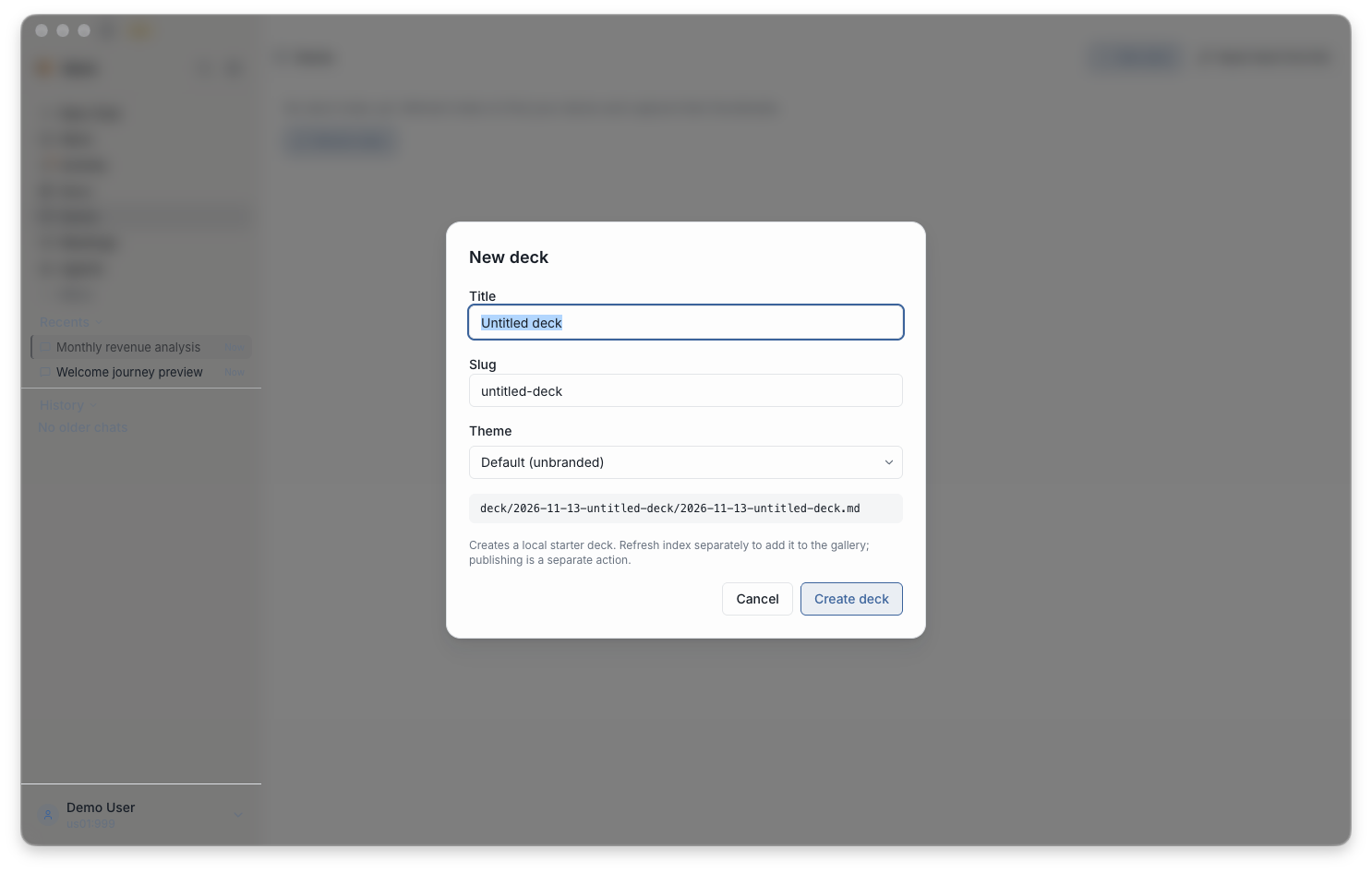
Creating a starter saves local files only — it doesn't publish anything. Decks created this way live in a dated folder such as deck/2026-11-13-campaign-review/, with the slide Markdown and an images/ folder together.
Make It Beautiful
Treasure Deck gives the AI a visual vocabulary beyond title-and-bullet slides:
| Ingredient | How to Use It |
|---|---|
| Themes | Start with unbranded default, or choose editorial, pastel, gold, treasure-ai, treasure-ai-2026, or wvlet. Ask to switch themes without rewriting the story. |
| Columns and cards | Compare options side by side, or pair a key claim with its supporting evidence. |
| Charts and tables | Turn supplied results into a chart; use a compact table when readers need exact comparisons. |
| Images | Add product imagery, a full-slide background, or a split image-and-text layout. |
| Diagrams | Explain a process or architecture visually rather than as a long bullet list. |
| Speaker notes | Keep the talk track with each slide without crowding the slide itself. |
Ask for the result you want, not the layout syntax:
- “Make the title of each slide state its takeaway, rather than just name the topic.”
- “Turn this list into three comparison cards, with one short sentence per card.”
- “Put the campaign result chart on the right and the recommendation on the left.”
- “Use a calmer theme and move the detailed explanation into speaker notes.”
- “Split slide four into two slides so the text is readable when presented.”
Give every slide a job
Keep one main idea per slide. Prefer a chart, diagram, or image that supports the takeaway over extra decoration. Ask the AI to check for overflowing content before you present; a clean layout check still needs your visual review.
Refine in the Live Editor
The deck editor opens in the chat's Browser tab. As the AI saves changes, the preview reloads so you can judge the actual slides rather than just read an outline.
Continue in the same chat with targeted requests: “Shorten slide two,” “Keep the chart, but change the recommendation,” or “Make the closing slide a clear next step.” Review facts, chart labels, image choices, and speaker notes before calling the deck finished.
You can also edit the deck directly. Its source is Markdown, with images beside it, so the presentation stays in your workspace rather than being locked inside a chat.
Find and Present Your Decks
Open Decks to browse the gallery. Use Refresh index to discover newly created or imported decks and update their previews — opening the gallery alone doesn't rescan your files. If a new deck is missing, refresh the index first.
- Edit slides — reopen a deck in its editing chat and live editor.
- Present — open the presentation view for your audience.
- Workspace filters — narrow the gallery when you have multiple workspaces.
- Tags — filter decks by topic; ask the AI to add a few useful tags to the deck.
Deck files are also searchable from Docs and with Cmd+K / Ctrl+K.
Share When You're Ready
Choose Publish from the deck's menu or editor to open its sharing options. Save your edits first, then choose the destination that suits your audience:
| Destination | Best For | Setup |
|---|---|---|
| Web page | Sharing a browser-viewable Treasure Deck presentation by link. | Connect your Google account in Settings → Connectors for Apps Script publishing. |
| Google Slides | Bringing the presentation into a Google Slides collaboration workflow. | Connect Google Slides; Google Drive is needed for image export and sharing controls. |
| Atlassian Artifacts | Sharing the built presentation through Atlassian. | Set up the Atlassian Artifacts connector. |
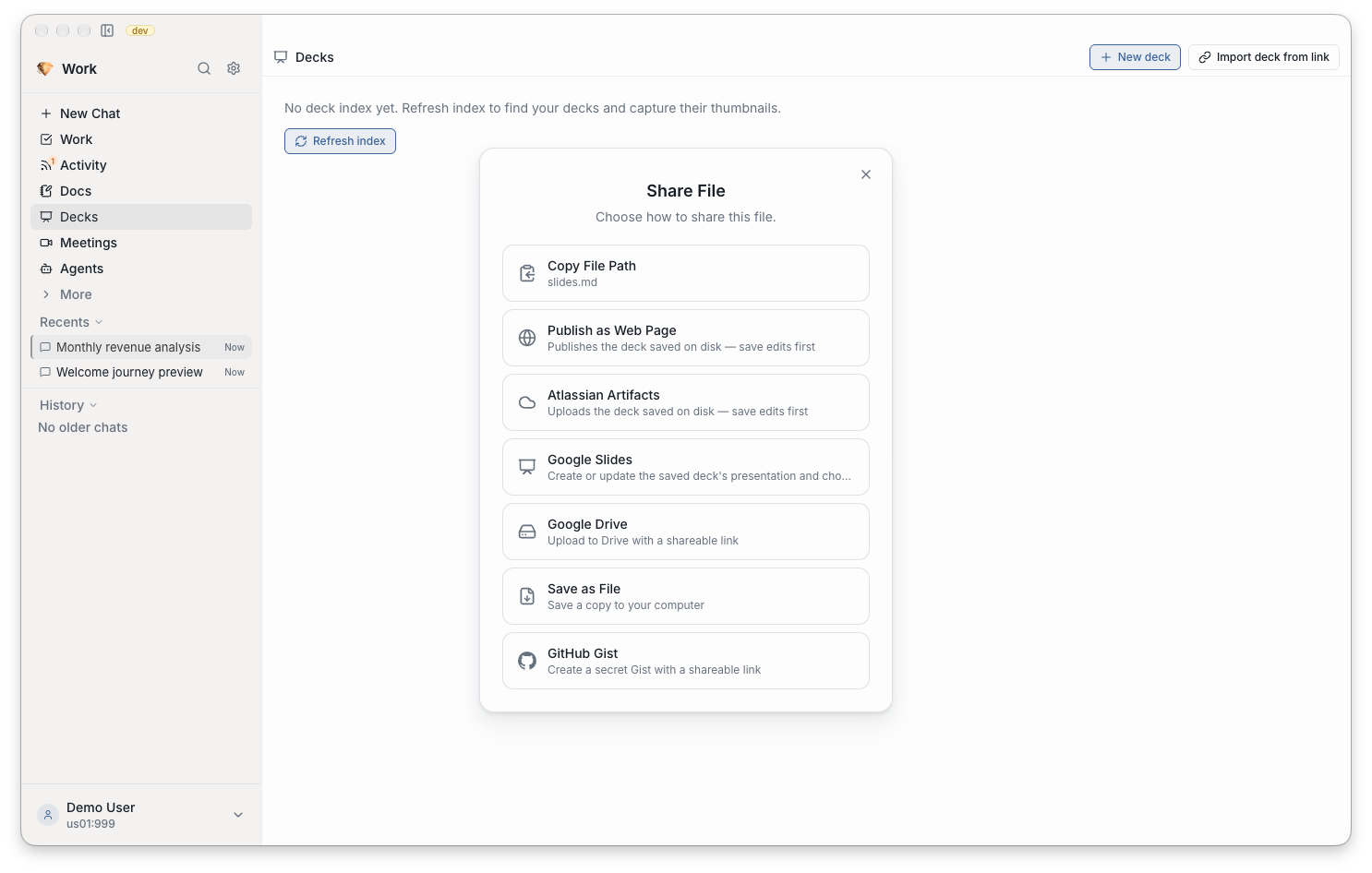
Review the audience in the sharing dialog before publishing. Google destinations offer Only me, a domain audience when available, and Anyone with the link; Google Slides can also keep current sharing. Atlassian's Anyone with the link (internal only) remains organization-only, not public. See Artifacts & Sharing for access choices, sharing limitations, and managing published records, and Connectors for setup.
A published deck is a snapshot, not a live view of your local file. After making changes, publish again to update the shared version. Re-exporting to an existing Google Slides presentation replaces its slides, so edits made only in Google Slides are lost — keep the deck's Markdown as your source of truth. The deck gallery's index is shared separately; publishing a deck doesn't automatically publish or update the index.
Review more than the visible slides
Published web decks include downloadable source, including hidden slides, and speaker notes are part of the built page. Don't treat hiding a slide as removing confidential information. Remove sensitive content from the source and notes before sharing.
Embed Slides in a Web Page
You can embed a published Treasure Deck in a website, wiki, or page that supports HTML iframes, just like the examples above.
- Publish the deck as a Web page using the sharing options above. Review its content and audience first.
- Open the published deck, then open its Share panel (
s). - Choose Copy embed snippet and paste it into your site's HTML or embed block. The snippet starts at the slide you are currently viewing.
The snippet uses the published deck URL with ?embed=1. For example, replace YOUR_DEPLOYMENT_ID with the value from your published Apps Script URL:
<iframe
  src="https://script.google.com/macros/s/YOUR_DEPLOYMENT_ID/exec?embed=1#/2"
  title="Presentation"
  loading="lazy"
  style="width:100%;aspect-ratio:16/9;border:0"
  allow="fullscreen"
  allowfullscreen
></iframe>
#/2 starts on slide two; remove it to start at the beginning. Use the published web URL, not a local file path or the deck editor's localhost address.
Embed mode shows previous/next controls, a slide counter, full screen, a light/dark switch, and Open ↗ on hover (always visible on touch screens). Click the moon/sun button to change mode, or click inside the frame and press d. The choice lasts until the frame reloads and does not change other windows showing the deck. Slides with an explicitly set mode keep it. If the browser prevents full screen inside the frame, the deck opens in a new tab instead.
Add &toc=1 before the # to show a table-of-contents column, for example ?embed=1&toc=1#/2. Use &toc=0 to hide it even if the deck normally shows contents. The column scales with the slide, so it works best in wide embeds. To start a deck in dark mode, ask the AI to set mode: dark in its Markdown frontmatter, then rebuild and republish it.
These embed controls require a deck built with Treasure Deck 2026.11.9 or later. Rebuild and republish older decks to add them.
Embedding does not bypass sharing permissions
An Apps Script deck embedded on another site must allow Anyone with the link. Private or organization-only decks require a Google sign-in that browsers do not pass to a cross-site iframe. If the content must stay restricted, share a normal link for authorized readers instead of widening access just to make an embed work. The source and speaker-note cautions above still apply.
An embed displays the published snapshot. Publish your changes again to update it; if the published URL changes, update the iframe's src too.
Start from a Shared Deck
Use Import on the Decks page to bring in a published Treasure Deck link. Review the local destination, complete the import, then choose Open deck to adapt it in the editor. If it already exists locally, choose whether to open the existing deck, create a copy, or explicitly replace it.
Next Steps
- Workspace — keep source documents, decks, and images together
- Connectors — set up publishing and collaboration destinations
- Introduction — explore the full feature set