
Installation
Get Treasure Work running in under five minutes.
Download
Supported Platforms
| Platform | Architecture | Status |
|---|---|---|
| macOS | Apple Silicon (arm64) | Available |
| Windows | x64 | Available |
| Windows | arm64 | Available |
| Ubuntu 24.04 LTS | x64, arm64 (including AWS Graviton) | Experimental |
Intel Mac Not Supported
Treasure Work requires Apple Silicon (M1 or later). Intel-based Macs are not supported as Apple is deprecating them in 2026.
Treasure AI Labs Terms
Treasure Work is an experimental Treasure AI Labs product, available under the Treasure AI Labs Terms of Use. Review the terms before using Treasure Work. The app asks you to accept them before you can continue.
Experimental Labs Product
Labs products are provided as-is and are not intended for use with sensitive, proprietary, or personal data.
AI Credit Consumption. Use of the software consumes AI Credits, which carry real monetary value. You are solely responsible for monitoring and managing your AI Credit usage.
Acceptable Use. Your use of the software must comply with the AI Acceptable Use Policy.
AI-Generated Output. The software uses artificial intelligence to generate outputs, including but not limited to queries, configurations, and recommendations ("Outputs"). Outputs may be incorrect, incomplete, or unsuitable for your specific environment. All Outputs should be reviewed and validated by a qualified professional before being applied or used.
Security Responsibility. You are responsible for securing your environment, credentials, API keys, and data pipelines before and during use. Treasure AI strongly recommends the following security practices:
- (a) Run the software in a sandboxed or non-production environment during initial evaluation.
- (b) Use least-privilege access controls for any credentials, API keys, or service accounts connected to the software. Do not grant the software administrative or root-level access to your data infrastructure.
- (c) Rotate credentials or API keys used during your evaluation when it ends or if you suspect unauthorized access.
- (d) Enable audit logging for any systems accessed by the software and periodically review activity logs for anomalous behavior.
- (e) Do not embed secrets, passwords, or access tokens directly into prompts, queries, or configurations submitted to the software.
Security Testing Restrictions. You may not perform penetration testing, vulnerability scanning, or other security assessments of the software or its infrastructure without Treasure AI's prior written consent. To report a security vulnerability, please contact security@treasure.ai.
Warranties and Liability. THE SOFTWARE IS PROVIDED AS IS. TREASURE AI DISCLAIMS ALL WARRANTIES, WHETHER EXPRESS OR IMPLIED, STATUTORY OR OTHERWISE. THE SOFTWARE IS NOT ERROR FREE. USE OF THE SOFTWARE MAY PRODUCE OUTPUT THAT IS UNEXPECTED OR UNSUITABLE FOR SOME USES. WITHOUT LIMITATIONS TO THE FOREGOING, TREASURE AI MAKES NO WARRANTY OR GUARANTEE AS TO THE ACCURACY, COMPLETENESS, FITNESS FOR PURPOSE OR RELIABILITY OF OUTPUT AND SHALL NOT BE LIABLE OR RESPONSIBLE FOR YOUR USE OF OUTPUT OR ANY OMISSIONS OR ERRORS IN THE OUTPUT. FURTHERMORE, TREASURE AI SHALL HAVE NO LIABILITY TO YOU RESULTING FROM YOUR USE OF THE SOFTWARE.
Install on macOS
Prerequisites
Treasure Work uses git to install and update skills. On macOS, git is provided by Xcode Command Line Tools. If you don't have them installed, open Terminal and run:
xcode-select --installSteps
- Download the latest
.dmgfrom above or the GitHub Releases page - Open the
.dmgand drag Treasure Work to Applications - Launch from Applications
Install on Windows
Setup Installer
- Download the Setup
.exefor your architecture (x64 or arm64) - Run the installer — it will add Treasure Work to your Start Menu
- Launch from Start Menu
The Setup installer supports automatic updates.
Install on Linux
The initial Linux baseline is Ubuntu 24.04 LTS, on x64 (amd64 in Debian package names) or arm64, including AWS Graviton. Use a normal desktop login with a browser, D-Bus, an unlocked Secret Service keyring such as GNOME Keyring, git, and a UTF-8 locale. Run Treasure Work as an ordinary user, not root. Amazon Linux, Alpine/musl, and SSH-only/headless operation are not supported by this setup.
Debian package (recommended on Ubuntu)
- Download the matching Linux
.debfrom GitHub Releases. Linux packages begin with the release containing Linux support; older releases have only macOS and Windows downloads. - Install the downloaded package with
sudo apt install ./Treasure-Work-<version>-linux-<architecture>.deb. Replace the filename with the actual download;aptinstalls the package's system dependencies. - Make sure GNOME Keyring (or another supported Secret Service keyring) is installed and unlocked in your desktop login session. A minimal server image needs a desktop and keyring configured separately; installing the Debian package does not provide them.
- Open Treasure Work from the application launcher, or run
treasure-workfrom a terminal in that desktop session.
AppImage
Download the matching Linux .AppImage, make it executable with chmod +x <downloaded-file>.AppImage, and launch it from the desktop session. The system must support AppImage/FUSE and Chromium's sandbox. On Ubuntu 24.04, the Debian package is the easier option because its installer configures desktop integration and the per-app sandbox policy. If the AppImage reports a FUSE or sandbox error, use the Debian package or ask your administrator to configure the required per-app policy; do not work around it with --no-sandbox or global security-policy changes.
AppImages use the existing Stable/Next update channels. Debian-package users can install a newer .deb over the existing version without removing user data. Keep the same OS account and keyring when updating.
AWS hosting with Connect
Connect requires the separate Connect feature to be available in both apps. Linux packaging alone does not add remote-control support.
- Start an Ubuntu 24.04 EC2 instance with the matching architecture and persistent storage. Configure a persistent remote-desktop login, a browser, an unlocked keyring, and a trusted VPN such as Tailscale. Keep both remote-desktop access and the Connect listener private; do not open the Connect port to the public Internet.
- Install Treasure Work and complete sign-in in the host desktop. Browser authentication and its callback must return to that host, not to an unrelated browser on the client computer.
- Once Connect is available, open Settings → Connect, select the private VPN interface, and enable hosting for the intended profile. Pair a trusted client in the same TD account/site using the private link, code, and native approval on the host. A paired device has shell-equivalent access as the host OS user.
- Start a coding session from the client in a folder on the host. Confirm its terminal output arrives. Keep remote-desktop access for questions and other host-only prompts.
- Keep Treasure Work's host window, desktop login, D-Bus session, and keyring available. Disconnecting a remote-desktop viewer must not log out the host. Closing the last Treasure Work window quits the Linux app and stops hosting. Revoke a paired device or turn Connect off to withdraw access; quit the app to stop hosting.
Linux meeting recording is unavailable. OS-specific passkey features are not added by Linux support, and the Atlassian Artifacts CLI is unavailable on Linux arm64.
Keyring recovery
If Unlock secure credential storage appears, start or reconnect to the same desktop D-Bus session, unlock the original keyring, then choose Retry. If the desktop session changed, choose Quit and restart Treasure Work from the correct session. Existing encrypted credentials cannot be recovered using a different keyring; restore the original keyring from your backup rather than deleting or replacing the encrypted credential file. The app will not use the insecure basic_text backend or a development credential store as a fallback.
First Launch
On first launch, a setup wizard connects Treasure Work to your Treasure AI account:
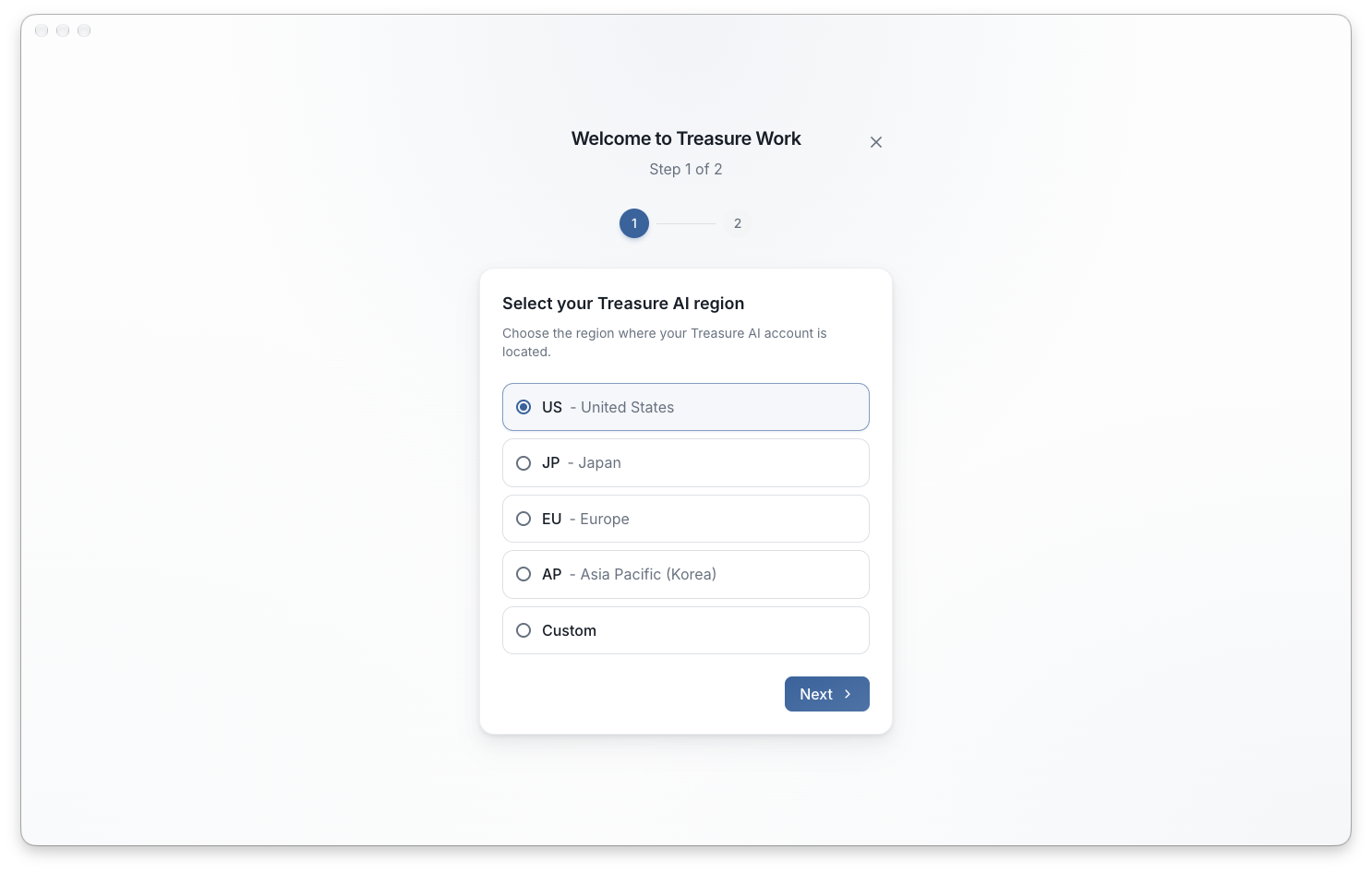
- Region — Select where your account lives (US, JP, EU, or AP)
- Sign in — Sign in with your Treasure AI account in the browser (OAuth). If browser sign-in isn't available for your region, expand the API key option and paste your key instead.
That's it. Your credentials are stored in an encrypted local file protected by your OS (macOS Keychain / Windows DPAPI / a supported Linux desktop keyring). Treasure Work is ready to use.
Next, optionally open Settings → Connectors → Add connector to connect the services you want the AI to use, such as Google Drive, Slack, or Jira. Each service has its own authorization and permissions; see Connectors.
Staying Up to Date
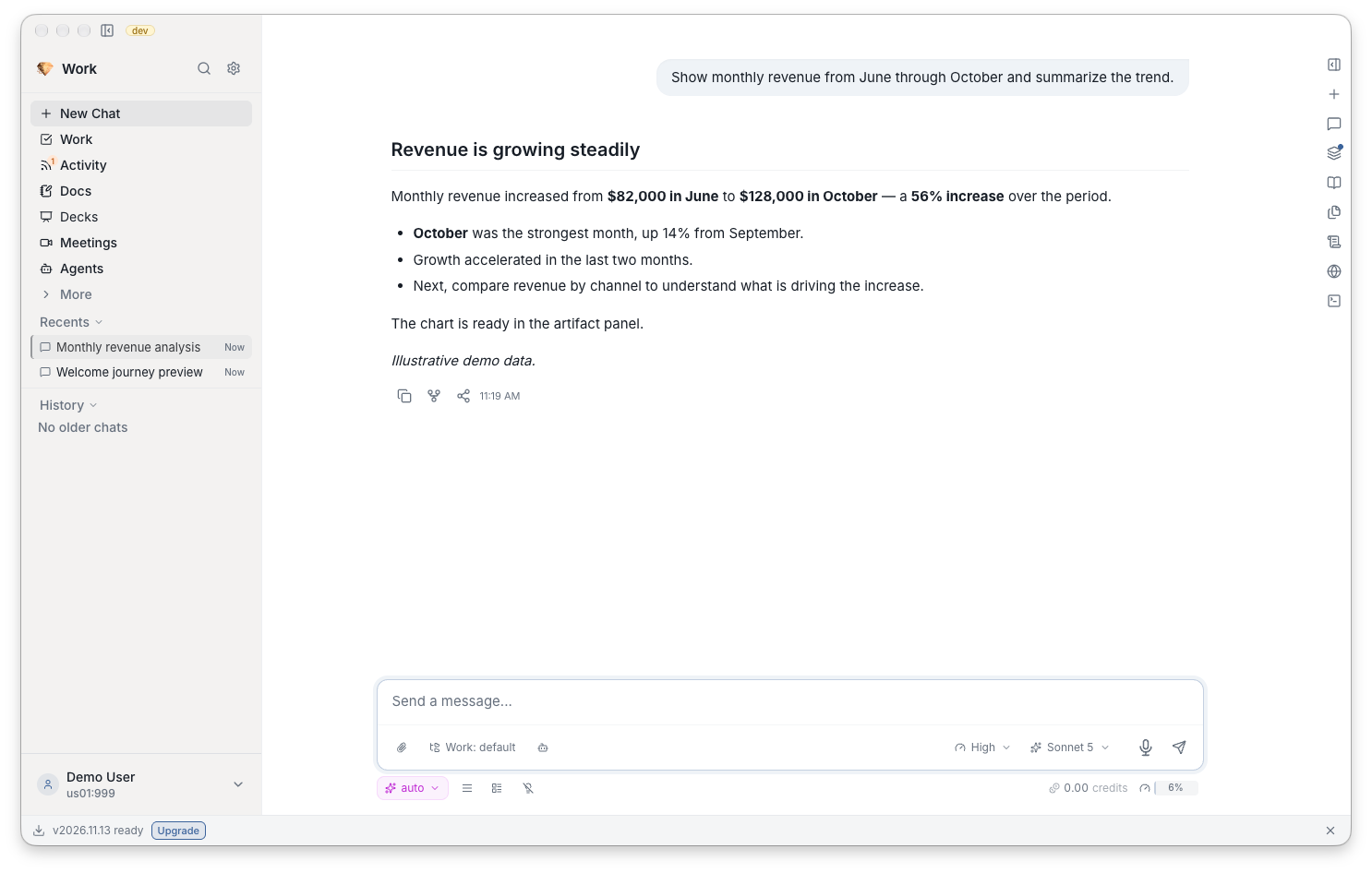
Treasure Work checks for updates at launch and periodically while it runs. When a new version is available, it downloads in the background and shows an update notice — click the update button (or open Settings → Updates and choose Restart to update) to install it.
Two release channels are available:
- Stable — Production-ready releases
- Next — Early access to upcoming features
Data Location
Treasure Work keeps your data in two places:
User data — TREASURE_WORK_HOME (~/.treasure-work/ on macOS and Linux, %USERPROFILE%\.treasure-work\ on Windows, unless overridden):
- Account profiles and per-profile chat history
- Agent definitions, meeting transcripts, logs
- Workspace state and Claude session files
App data — Electron's per-platform application data directory:
- macOS:
~/Library/Application Support/Treasure Work/ - Windows:
%APPDATA%\Treasure Work\ - Linux:
${XDG_CONFIG_HOME:-~/.config}/Treasure Work/
This holds app settings, encrypted credentials, and caches. Back up ~/.treasure-work/ to keep your chats, agents, and transcripts.
Troubleshooting
Sign-in not accepted
Verify your account and region are correct by running:
tdx statusUpdate stuck
If an auto-update fails, download the latest installer from the download section above and install over the existing version.
Skills not loading (macOS)
If the Skills panel shows an error about git or Xcode Command Line Tools, install them by running:
xcode-select --installRestart Treasure Work after installation completes.
Sign-in errors
Open Settings → Account and click Reauthenticate (or Sign out and sign in again). Credentials are stored in an encrypted local file protected by your OS (macOS Keychain / Windows DPAPI / a supported Linux desktop keyring) — there are no individual Keychain items or Credential Manager entries to inspect.
Next Steps
- Connectors — Connect the services you use
- Workspace — Organize goals, work items, and documents
- Artifacts & Sharing — Review outputs and choose a sharing audience
- Introduction — Learn what you can do with Treasure Work
- Concepts — Understand agents, models, and credits