
Coding Agents
A coding agent is the engine that runs a chat or an agent's work. Treasure Work includes a built-in Local runtime, and it can also run the Claude Code, Codex, and Pi command-line coding agents as live sessions on your computer. Choose the engine when you start a chat, or in an agent's Backend setting. See Agents for creating and running agents.
Choose a Backend
The Backend menu sits in the chat composer and appears only before a chat starts. Once a chat has started, its backend stays the same.
| Backend | How It Runs |
|---|---|
| Local | Built-in execution with no separate installation |
| Claude Code | The bundled Claude Code CLI in an interactive session. Named profiles are configured under Settings → Coding Agent |
| Codex | The OpenAI Codex CLI, installed separately. It appears as "Not installed" until Treasure Work detects it |
| Pi | The Pi coding agent, installed separately. It has no per-tool approval prompts |
| Treasure AI | Remote execution for agents in a connected Treasure AI workspace, using that folder's synced files |
Codex and Pi availability depends on your account. Model, effort, and profile choices also depend on the backend.
Chat and Terminal Views
Claude Code, Codex, and Pi sessions have two views:
- Chat shows the conversation, along with approval requests and tool activity.
- Terminal shows the live command-line session, and you can type into it.
Switch between them with the Chat and Terminal buttons beside the composer. Terminal is available only while the session is running.
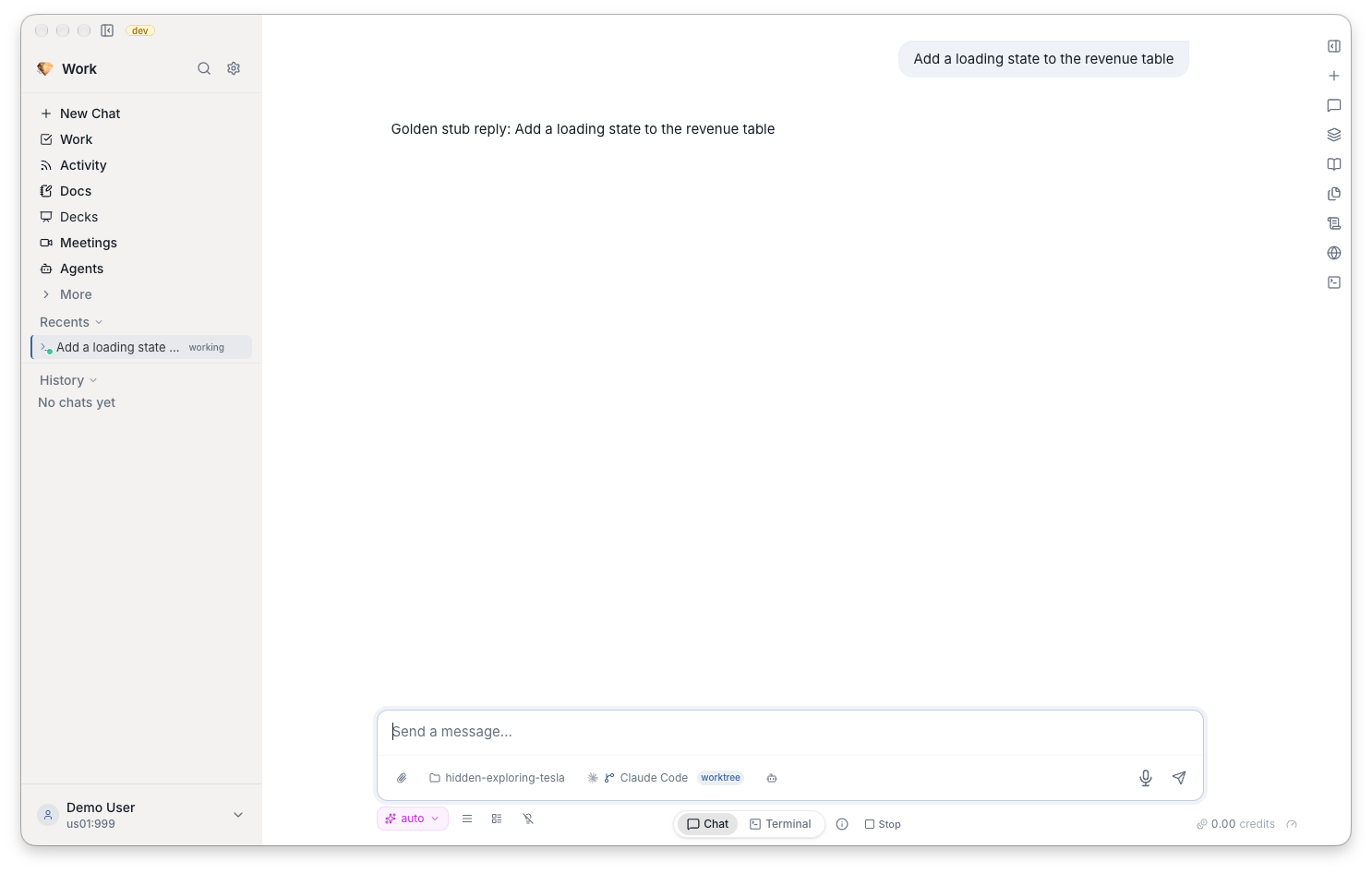
The reply in this illustration is placeholder text from a test stub, not model output. The folder name and project are synthetic.
Useful Keyboard Shortcuts
These are the default bindings. Use Cmd on macOS or Ctrl on Windows. View the current bindings and customize supported shortcuts in Settings → Keyboard Shortcuts.
| Action | macOS | Windows |
|---|---|---|
| Start a new chat | Cmd+N | Ctrl+N |
| Switch to a live session or search chat history | Cmd+O | Ctrl+O |
| Previous / next session in Recents | Cmd+[ / Cmd+] | Ctrl+[ / Ctrl+] |
| Switch Chat ↔ Terminal | Cmd+' | Ctrl+' |
| Toggle the right panel between equal width and its default width | Cmd+; | Ctrl+; |
| Show / hide the right panel | Cmd+Shift+; | Ctrl+Shift+; |
| Borrow an agent's context and setup | Cmd+P | Ctrl+P |
| Focus the chat input | Cmd+L | Ctrl+L |
| Open the command palette | Cmd+Shift+P | Ctrl+Shift+P |
For a repeatable coding setup, start a new chat, borrow your coding agent with Cmd+P / Ctrl+P or type #agent-name, then review the backend, model, folder, and worktree setting before sending your task. Starting a new chat opens the composer; it does not launch a coding session or create a worktree until you send the first message.
Use the session switcher or previous/next shortcuts to move between parallel tasks, then switch to Terminal when you need to interact with the live CLI. The Chat/Terminal shortcut controls the coding session's view, not the separate Terminal tab in the right panel.
Work in a Git Worktree
A git worktree is a separate folder with its own branch, so a coding agent can change code without touching your main checkout. Treasure Work creates one only when you ask it to. Nothing is created by default.
Turn it on in one of these places:
- The worktree button in the composer, before the chat starts. Its switch, Create worktree, applies to the next chat.
- The New menu in the sidebar, which includes options to start a chat or session in a worktree.
- An agent's settings, with Worktree on and an optional Base branch. Every chat bound to that agent then starts in a worktree.
Worktrees are not available for workspace folders or for Treasure AI agents, which work from remote files.
What Happens When a Worktree Starts
When you send the first message, Treasure Work:
- Fetches updates for the base branch when it can. The status reads "Fetching updates and creating worktree…".
- Creates a new branch, named after the worktree, from the base branch's latest commit.
- Creates the folder at
<repo>/.claude/worktrees/<name>. - Starts the chat in that folder.
The base branch is the repository's default branch (origin/HEAD, then main, then master) unless you choose a different local branch in the worktree button. Your current checkout is not switched. Treasure Work does not automatically use the feature branch you happen to have checked out; select it explicitly if you want it as the base.
How the Base Branch Is Refreshed
- If your local base branch is behind its remote, the worktree starts from the remote's latest commit.
- If your local base branch has commits the remote doesn't, the worktree keeps them and starts from your local branch.
- If your local and remote branches have diverged, the worktree starts from the remote. Your local-only commits stay on the base branch and are not included.
- If the fetch fails, or the branch has no remote, the worktree starts from your local base branch, which may be out of date.
Treasure Work fast-forwards your local base branch only when that is safe, meaning it is clean and strictly behind its remote. It never merges, rebases, or resets your branches.
What Is Not Copied
A new worktree contains only committed files from the base branch. It does not include:
- Uncommitted changes and untracked files from your checkout
- Gitignored files, such as
.envandnode_modules. Install dependencies in the worktree before running tests or builds there.
When a Worktree Can't Start
If Treasure Work can't create the worktree, for example because the folder isn't a git repository, the base branch doesn't exist, or git reports an error, it stops the send and shows "Worktree provisioning failed." It does not fall back to your main checkout. A failed fetch is the one exception: that falls back to the local base branch, as described above.
Clean Up Worktrees
Closing a chat does not delete its worktree. Worktrees stay in <repo>/.claude/worktrees/ until you remove them yourself or the chat's agent calls its cleanup tool.
The cleanup tool moves the worktree to the Trash and deletes its branch only when all of these are true:
- No open pull request uses that branch
- The worktree has no uncommitted or untracked changes
- Every commit is on a remote
- No other live coding session is running in that folder
If any check fails, the worktree stays on disk. The cleanup tool never removes worktrees you created yourself outside Treasure Work.
Gitignored files go to the Trash too
Moving a worktree to the Trash also removes its gitignored files, such as .env and local dependencies. Copy anything you need out of the worktree first.
Next Steps
- Agents — create and run agents that use these backends
- Workspace & Work — keep the goals and items a worktree serves together
- Security — choose a permission mode for coding sessions